Risk control
This topic explains how to manage and govern your content. Only content deemed risk-free by the risk control module is eligible for delivery. Content that triggers alerts or warnings requires a manual review. Based on this review, you can decide whether to activate or deactivate the content for delivery tasks. This ensures your content remains safe, compliant, and appropriate for the intended audience.
Content pending review
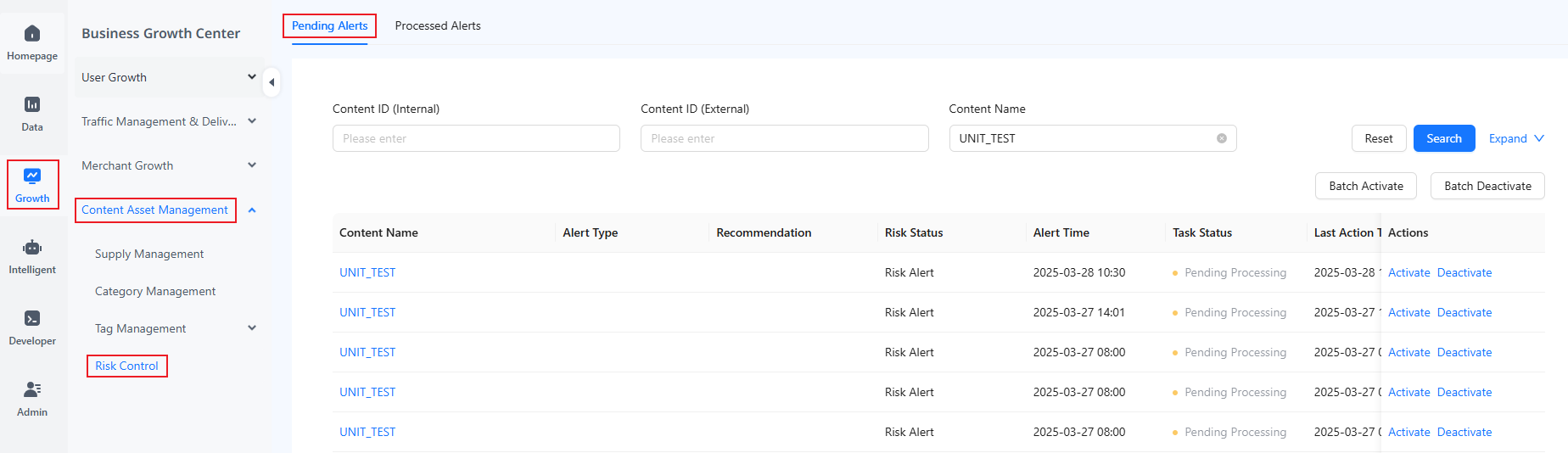
Log in to the ASAP console and navigate to Growth > Content Asset Management > Risk Control. The Pending Alerts page is displayed by default and allows you to manually review alerted content and activate or deactivate it based on your assessment.
Activate content
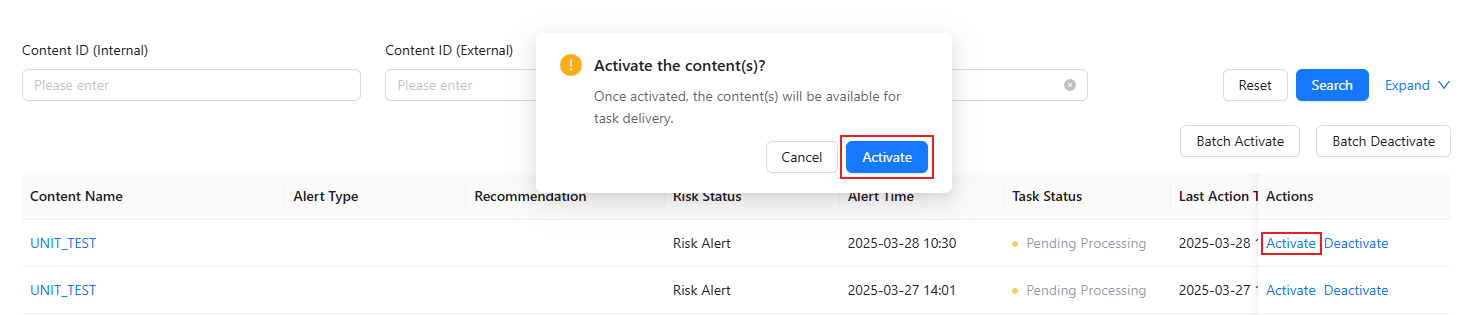
- For a single content item: Locate the item, click Activate, and confirm activation.
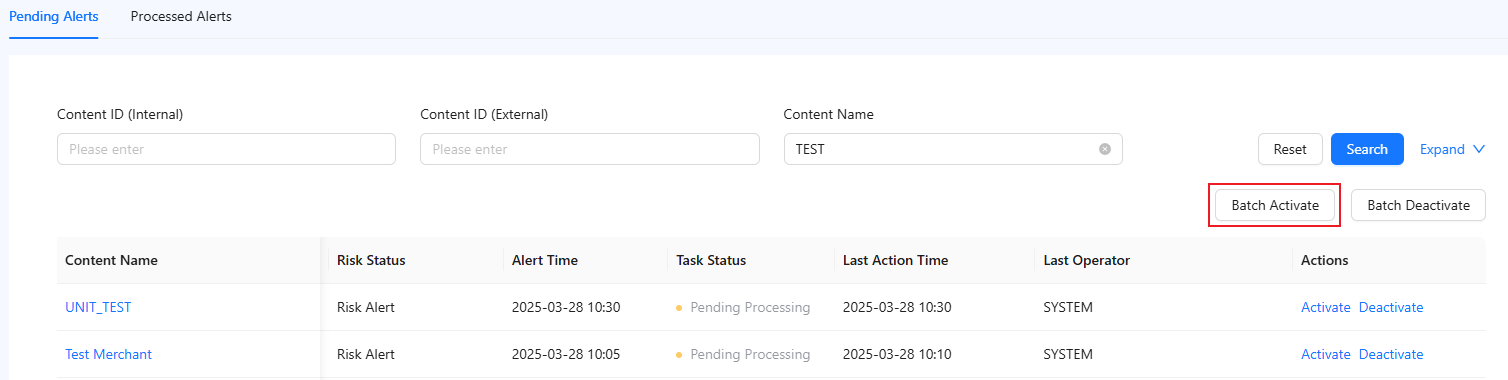
- For multiple content items: Click Batch Activate, select the content items, and click Confirm Batch Activate.

Once activated, the content can be used for task delivery, selection, and other associated operations.
Note: If an error occurs during a batch operation due to temporary technical issues, the content items will revert to their original status. In this case, try again later. If the error persists, contact technical support.
Deactivate content
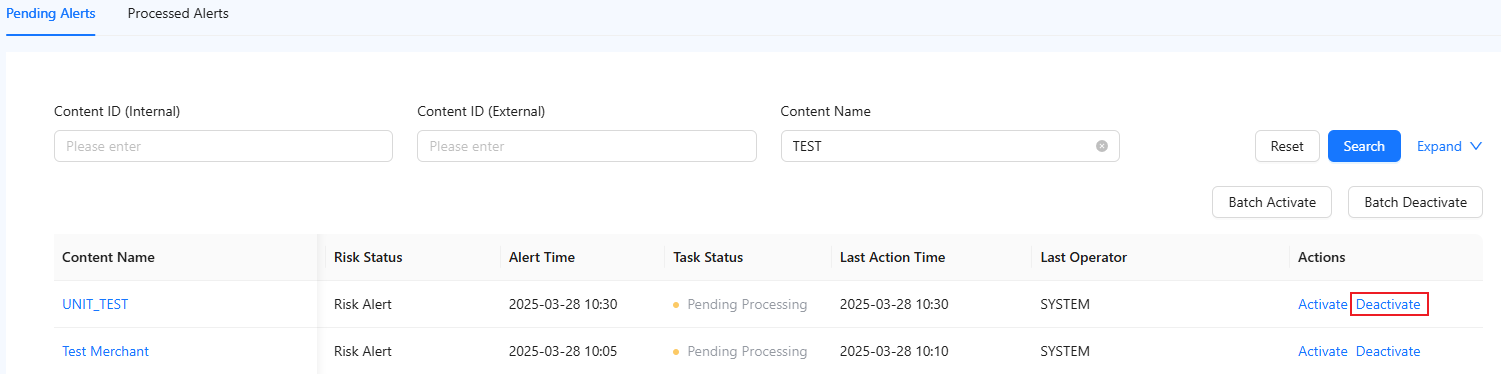
- For a single content item: Locate the item and click Deactivate in the Actions column.
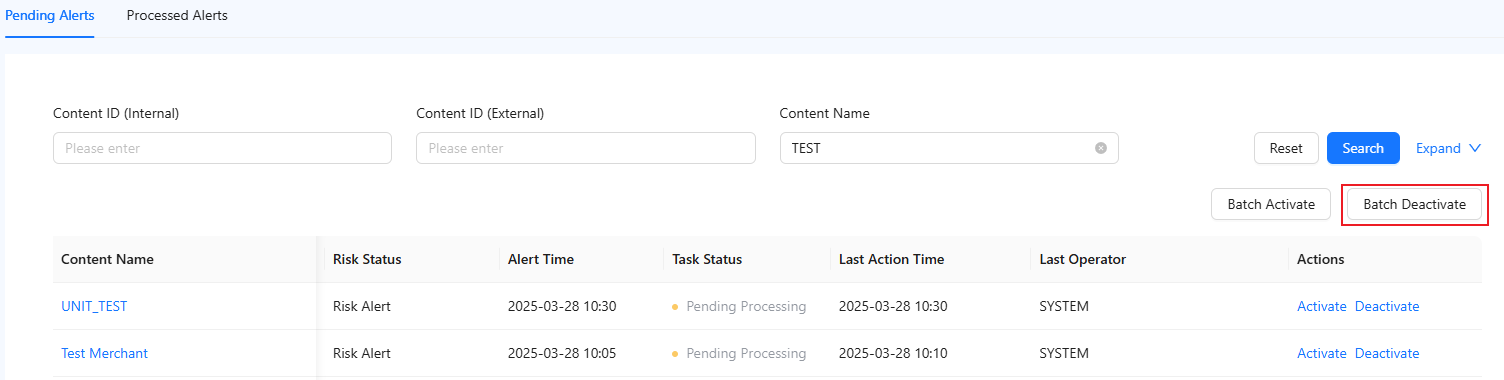
- For multiple content items: Click Batch Deactivate, select the content items, and click Confirm Batch Deactivate.

Note: Once deactivated, content will be unavailable for task delivery or selection. Deactivation does not require confirmation, so proceed with caution.
Processed content
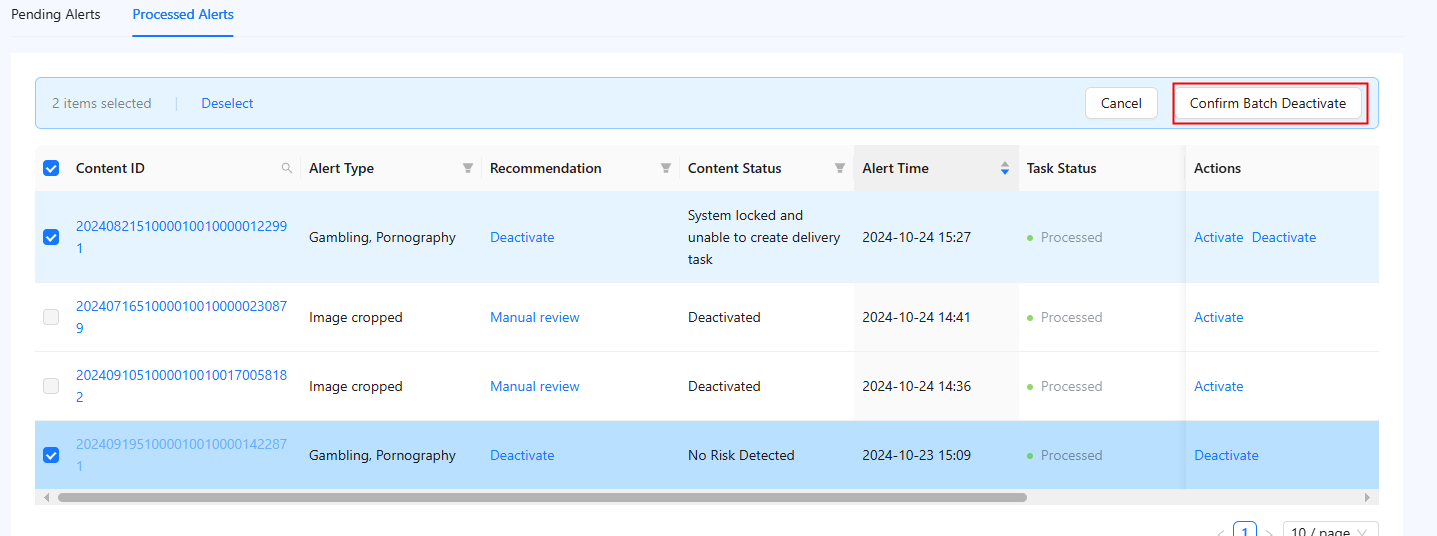
To view processed content, switch to the Processed Alerts page. This page presents all content items, including those deemed risk-free by the risk control module, non-compliant content locked and deactivated by the system, and content manually activated or deactivated after triggering alerts. All these content items, whether activated or deactivated, can be re-evaluated and operated upon after a thorough review.
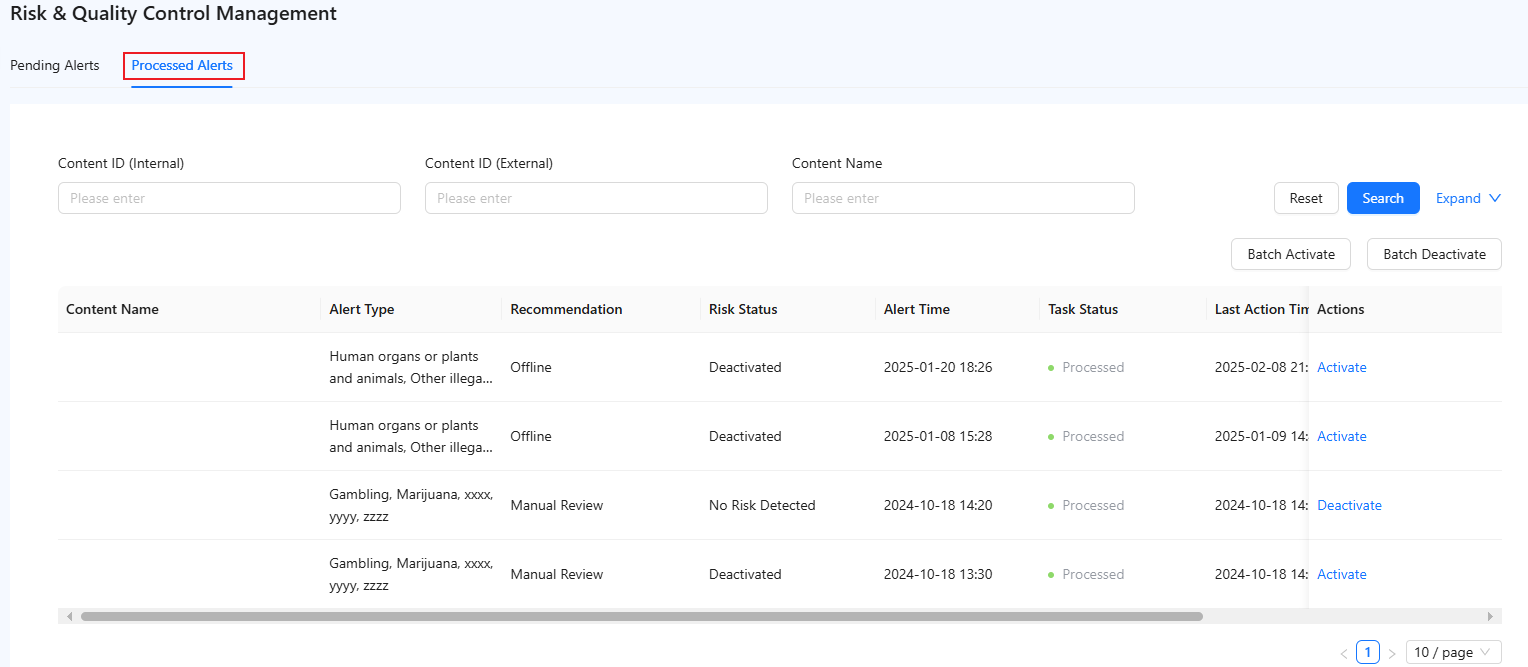
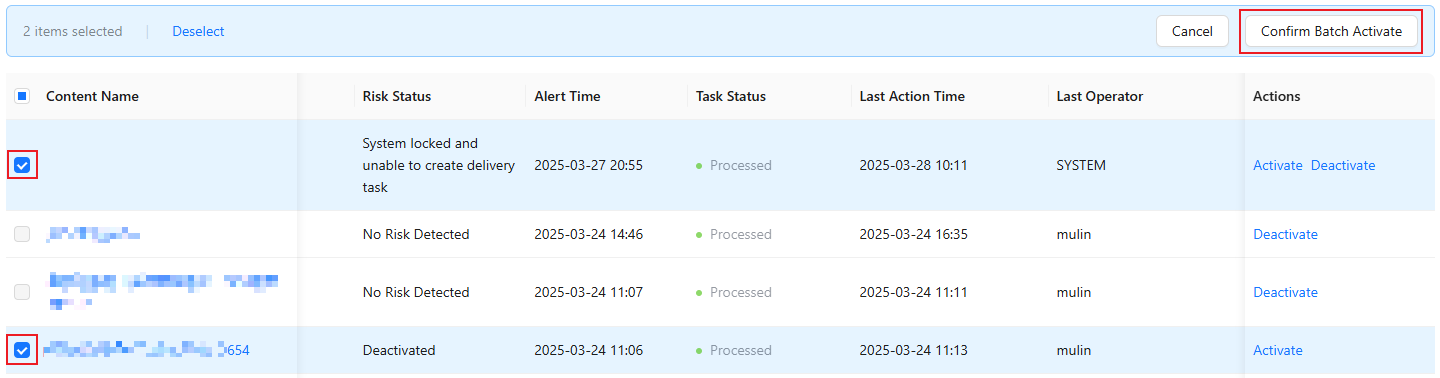
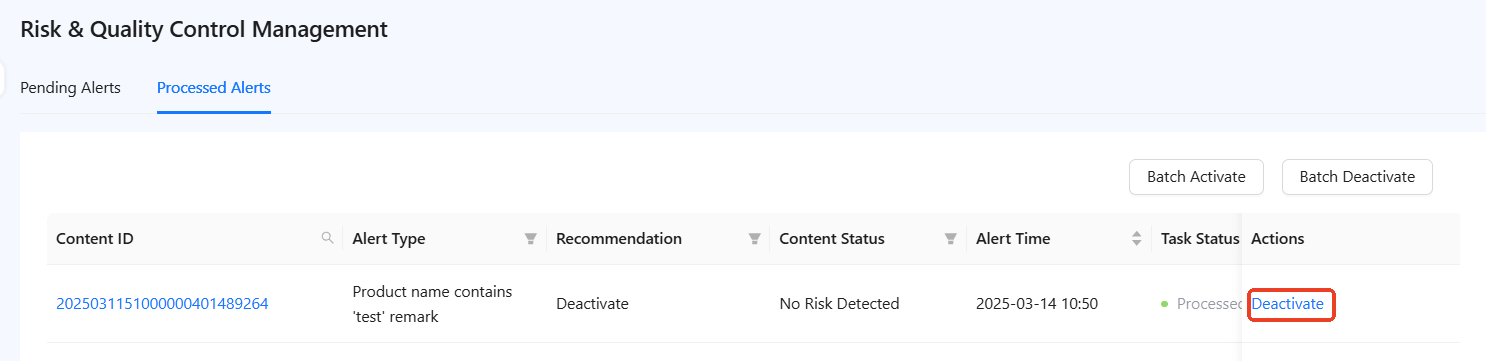
Note: If no risk is detected for a content item, only Deactivate appears in the Actions column. If a content item is in a deactivated state, only Activate is visible in the Actions column.
Activate content
- For a single content item: Click Activate and confirm activation.
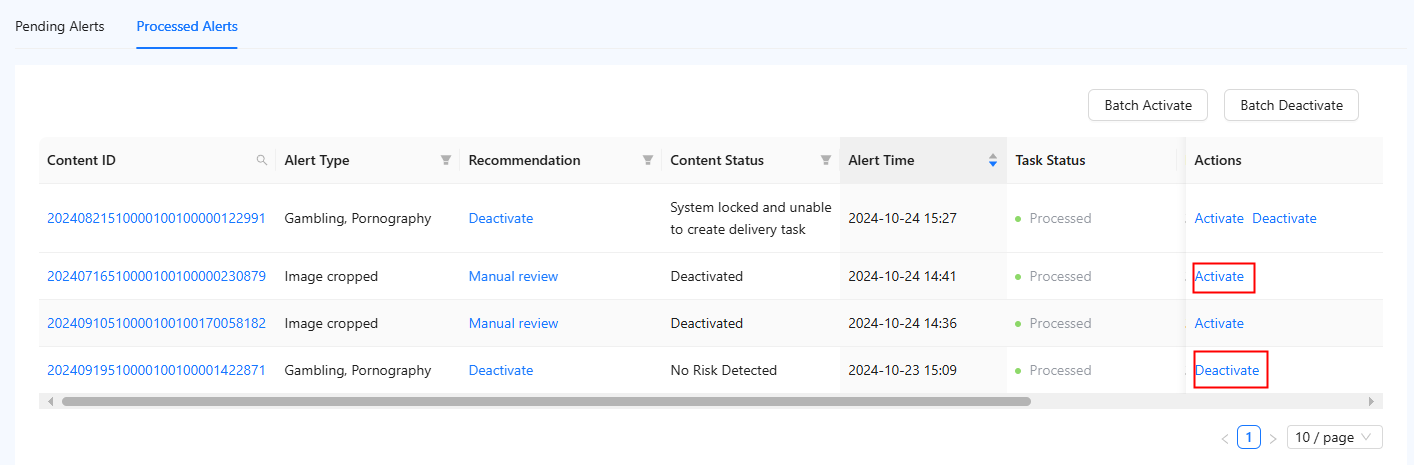
- For multiple content items: Click Batch Activate, select the content items, and click Confirm Batch Activate.

Deactivate content
- For a single content item: Click Deactivate and confirm.
- For multiple content items: Click Batch Deactivate, select the content items, and click Confirm Batch Deactivate.