
Recommended placement
To display specific content to users through display spaces, it is essential to create delivery tasks. The ASAP platform enables operators to create and manage these tasks, which are categorized into the following four types:
- Operational Space Tasks: Deliver static creatives to spaces through detailed, manual configuration by operators, focusing on precise targeting.
- Recommended Space Tasks: Filter content using specific criteria and employ algorithms to intelligently deliver it to card and feed spaces.
- Commercial Space Tasks: Tasks related to paid advertising and merchant partnerships.
- Push Tasks: Send notifications or messages directly to users' mobile devices.
This document primarily guides users through the process of creating and managing delivery tasks within recommended spaces. The recommended space has the following characteristics:
- It supports using algorithms to recommend content for delivery and specifying the delivery slots for the content. Currently, algorithm recommendations only support dynamic content, and slot delivery only supports static creative.
- The contextual relevance settings do not apply to tasks delivered to recommended spaces.
- Tasks delivered to recommended spaces use a competitive budget and do not need to be associated with delivery plans.
Basic concepts
Terms | Definition |
Content | Items delivered to display spaces, such as coupons, services, merchant info, etc. Content selection uses fixed rules to filter suitable content. Although the rules do not change, the selected content may vary with updates to the content library. |
Target Slot | Specific positions within a display space where tasks are targeted for delivery. Slots are organized numerically, progressing from left to right and top to bottom. |
Access the task list
To access the task list page, go to Business Growth Center > Traffic Management & Delivery > Recommended Placement. Tasks are organized by spaces, so start by selecting a specific recommended space on the left side of the page. Once a space is selected, its name will appear at the top of the page, and you have access to the following three operational tabs:
- Content: Select content to be delivered to the chosen recommended space.
- Rules: Configure algorithm rules for delivering tasks.
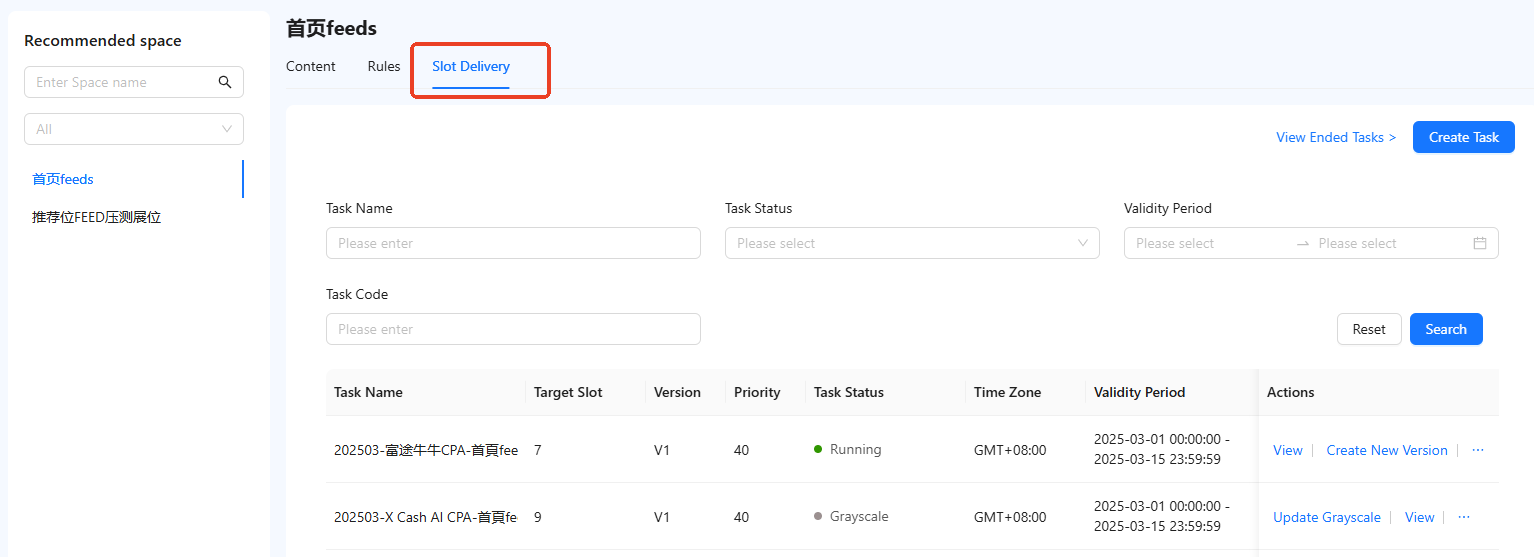
- Slot Delivery: Deliver static creatives to specific slots within the recommended space.
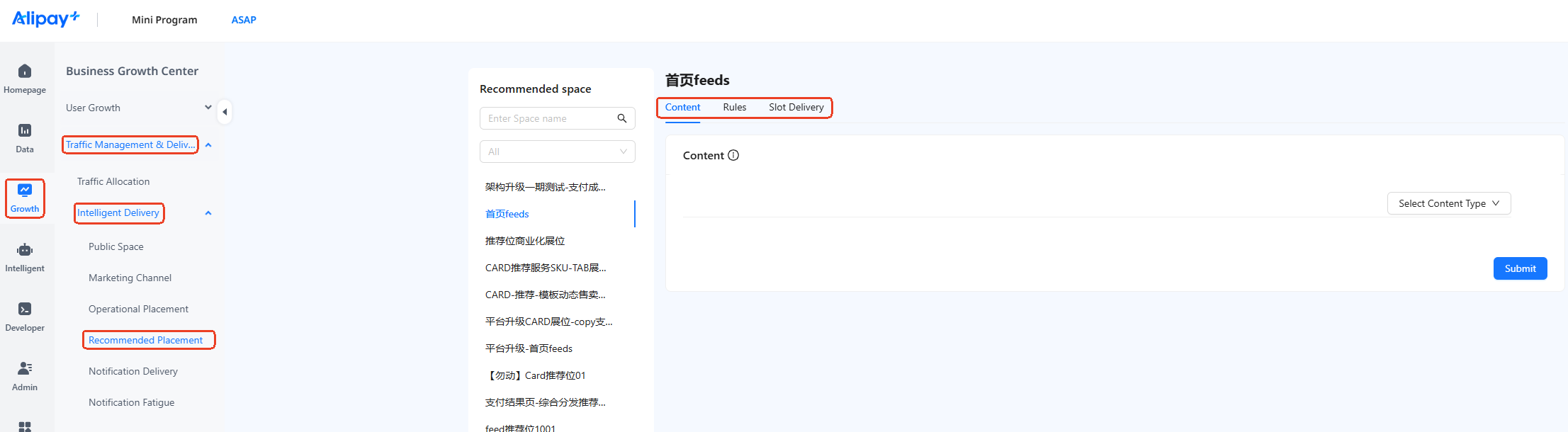
Content
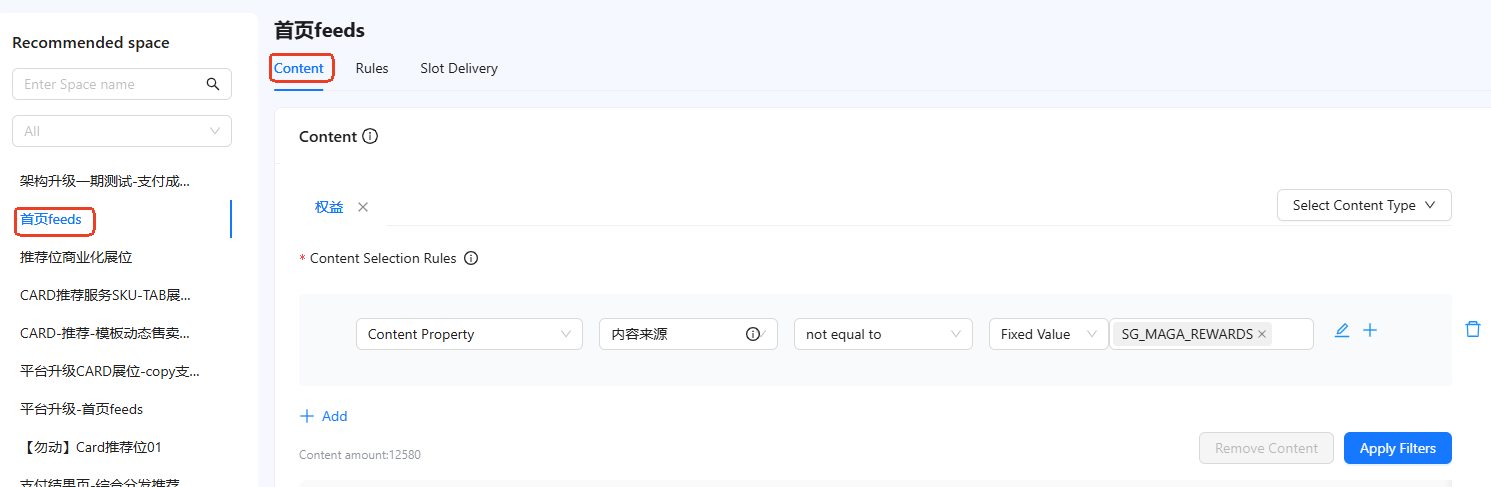
Select a specific recommended space to access the content configuration page. Take the following steps to select content:
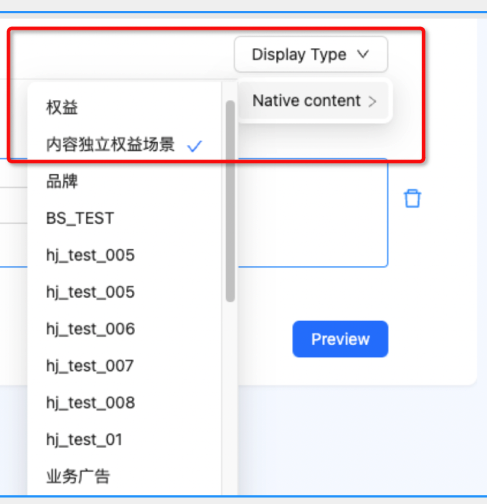
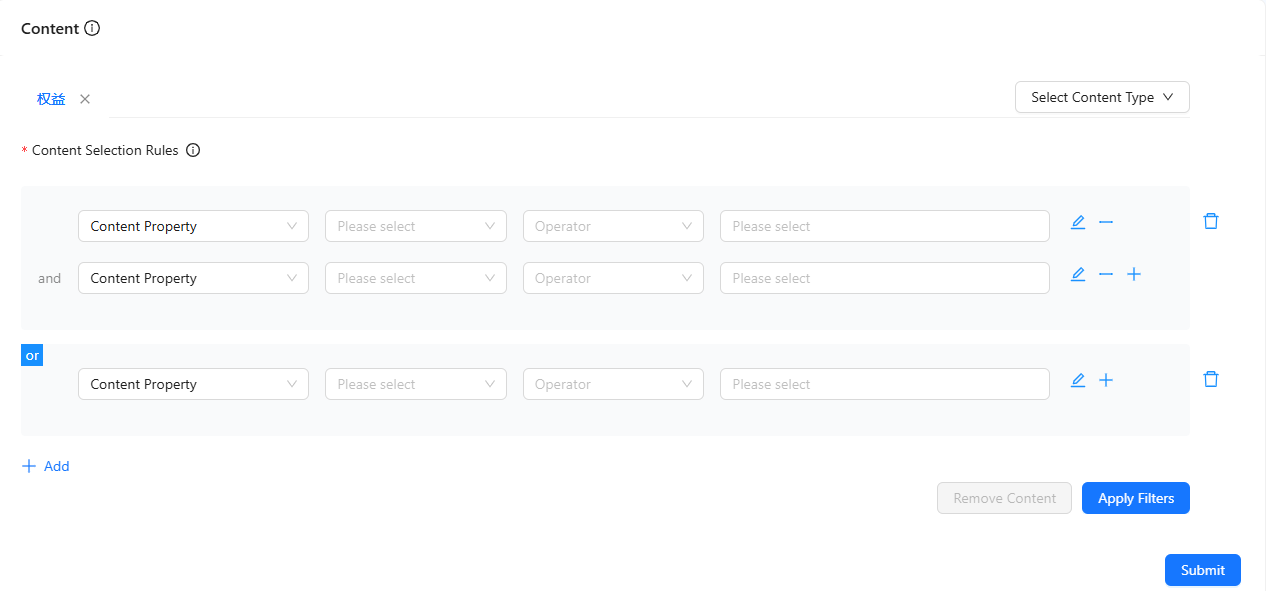
- Click Select Content Type to choose a type of content.
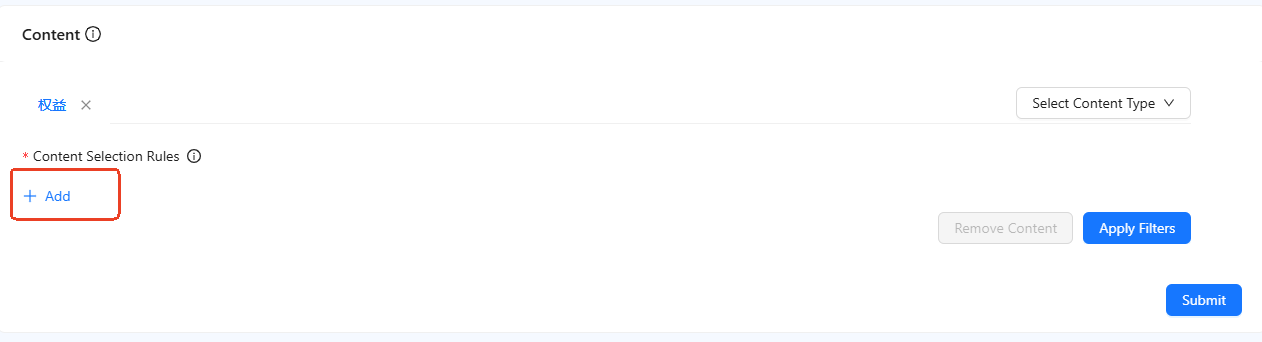
- Click Add to configure the rules for selecting content.
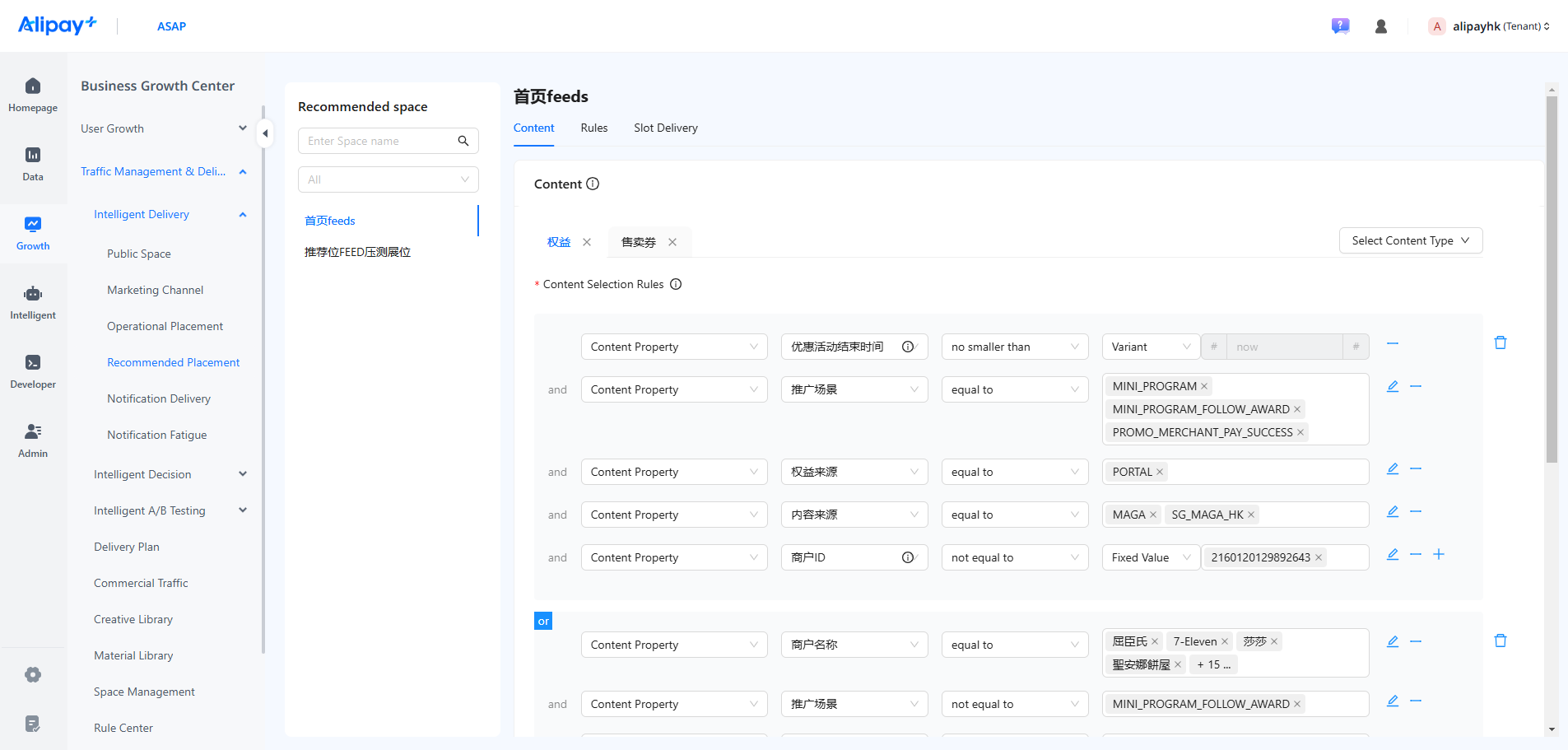
- Filter content using content properties, custom tags, or algorithmic tags. When applying multiple rules, use "And" or "Or" relationships.
- The "Or" relationship allows content to meet any of the specified rules
- The "And" relationship requires all selected rules to be met simultaneously. Each type can have a maximum of 10 conditions.
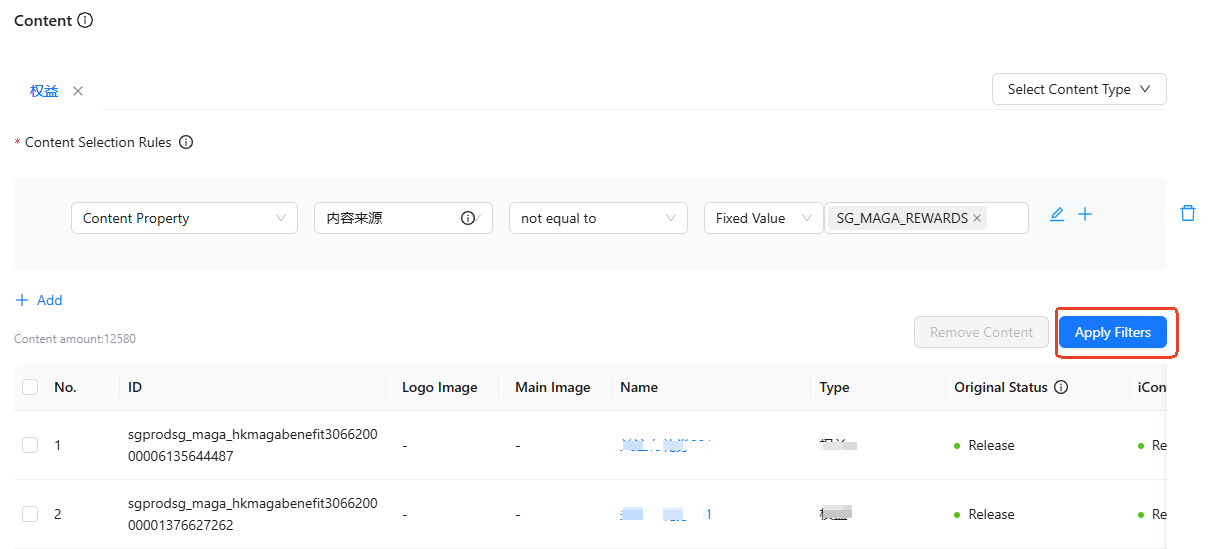
- Click Apply Filters to search for content that meets the specified rules. If there are any results you want to exclude, select them and then click Remove Content at the upper right corner of the list.
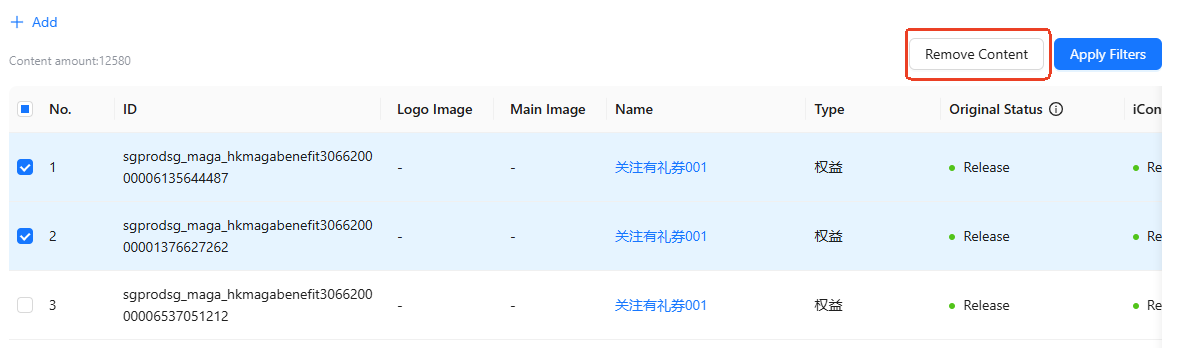
- Click Submit in the bottom right corner.
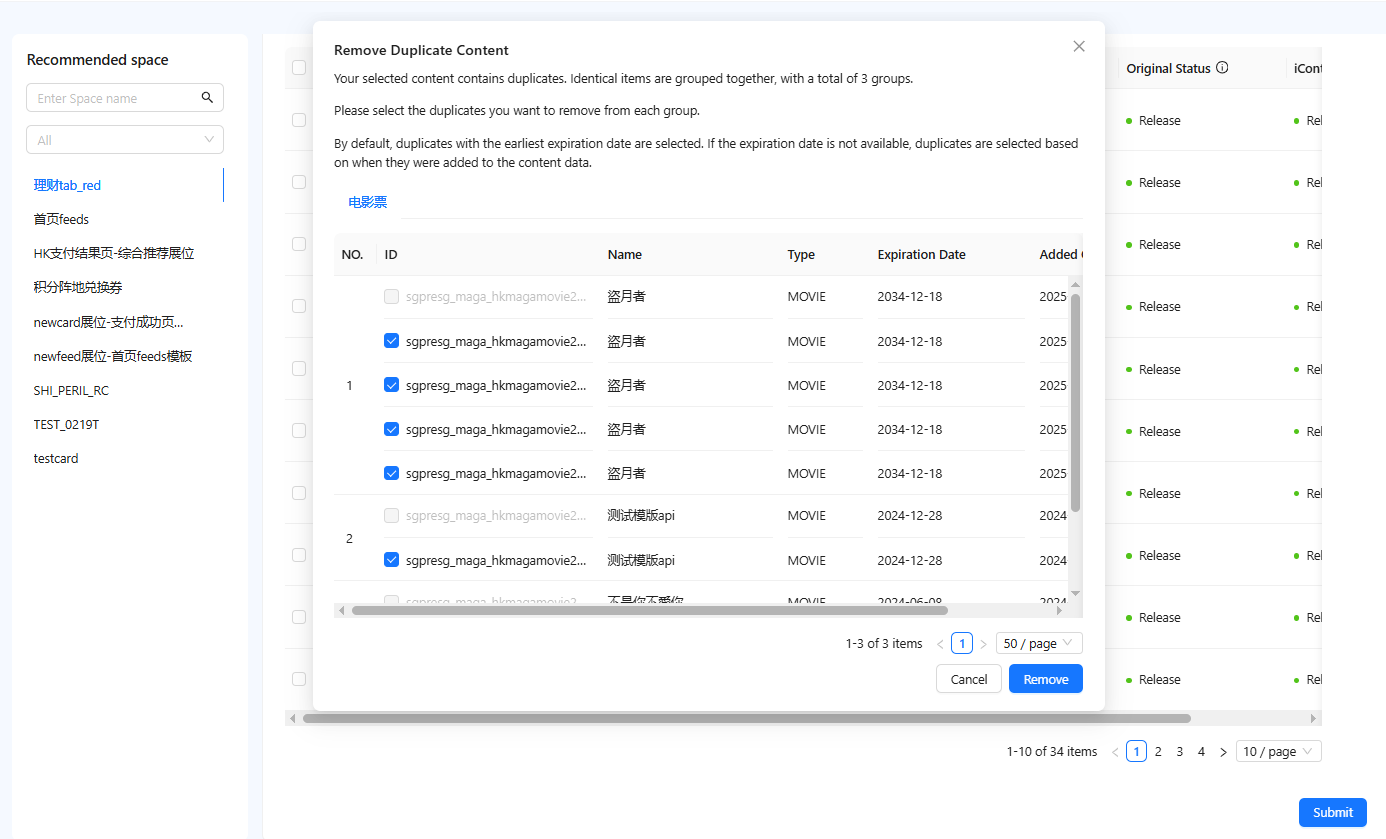
Note: If duplicate content is detected, such as identical content with different content IDs, a popup will prompt you to remove the duplicates. Click Confirm after you verify the content to be deleted, and then submit again.
Delivery rules
Switch from the Content tab to the Rules tab under the page title to configure the task delivery rules. You can configure two types of rules: match rules and content diversification rules.
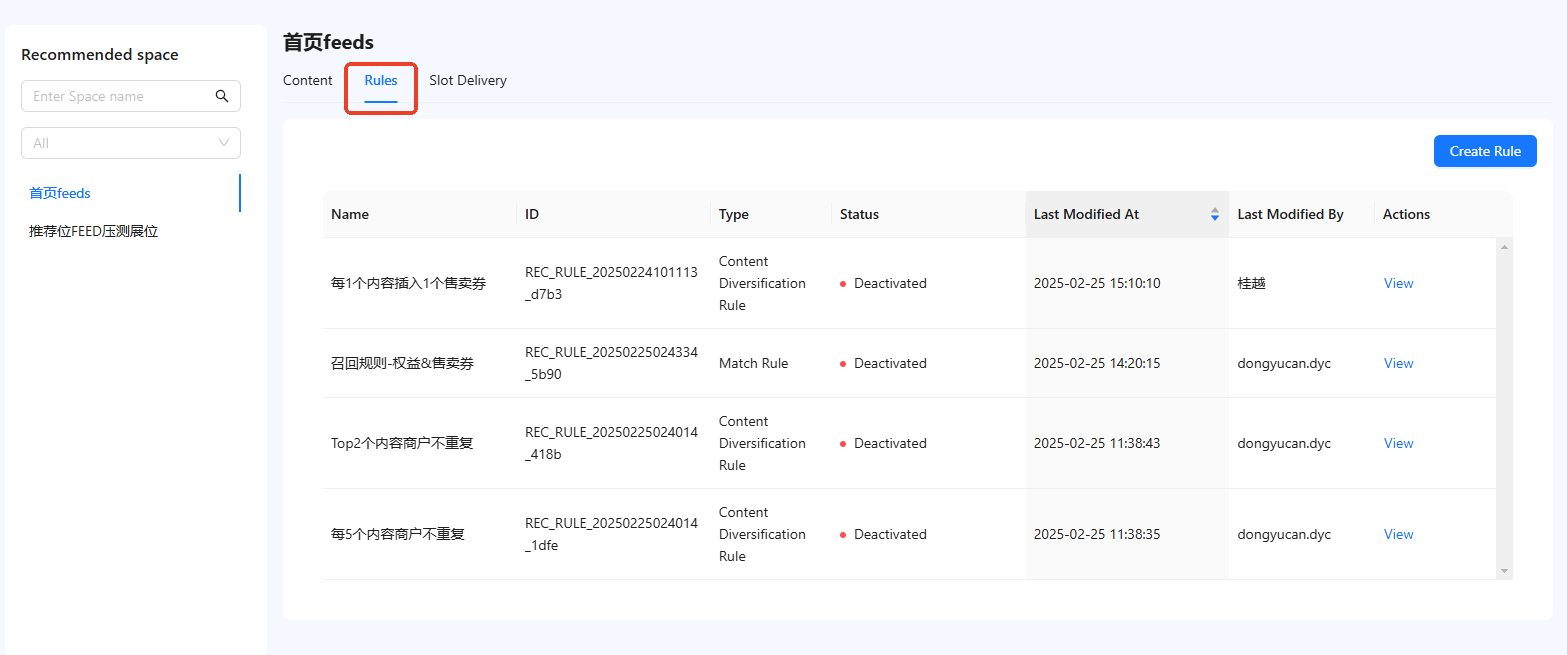
Note: The recommended spaces must have their content selected before configuring the rules.
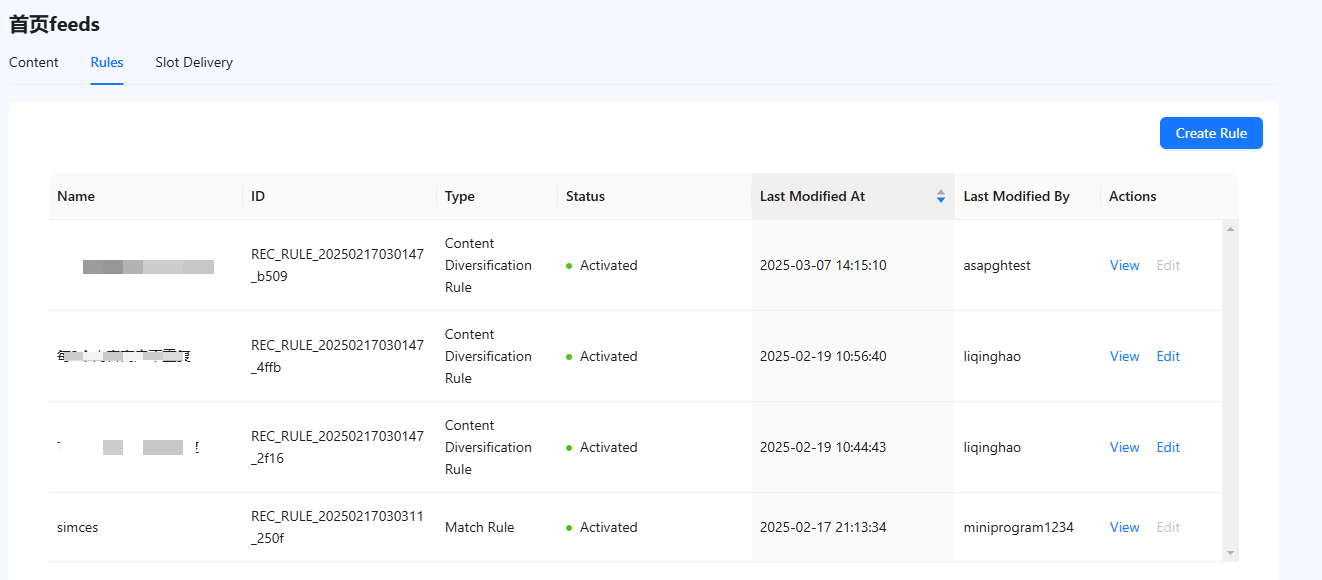
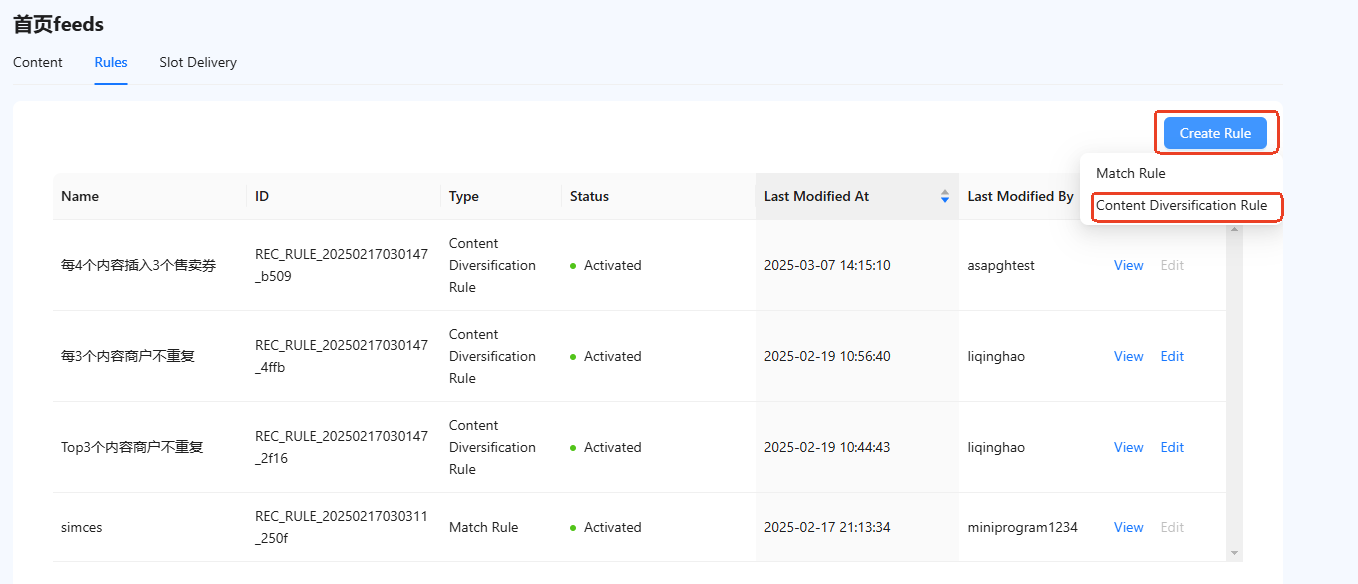
Under the Rules tab, all created rules are listed, including match rules and content diversification rules. Here, you can create new rules, edit existing ones, apply grayscale, and deactivate rules.
Match rules
Match rules are designed to deliver tailored content to different audiences. If no target audience is configured for the rule, the task defaults to deliver to all audiences.
Create a match rule
Take the following steps to create a match rule:
- Click Create Rule > Match Rule to access the rule creation page.
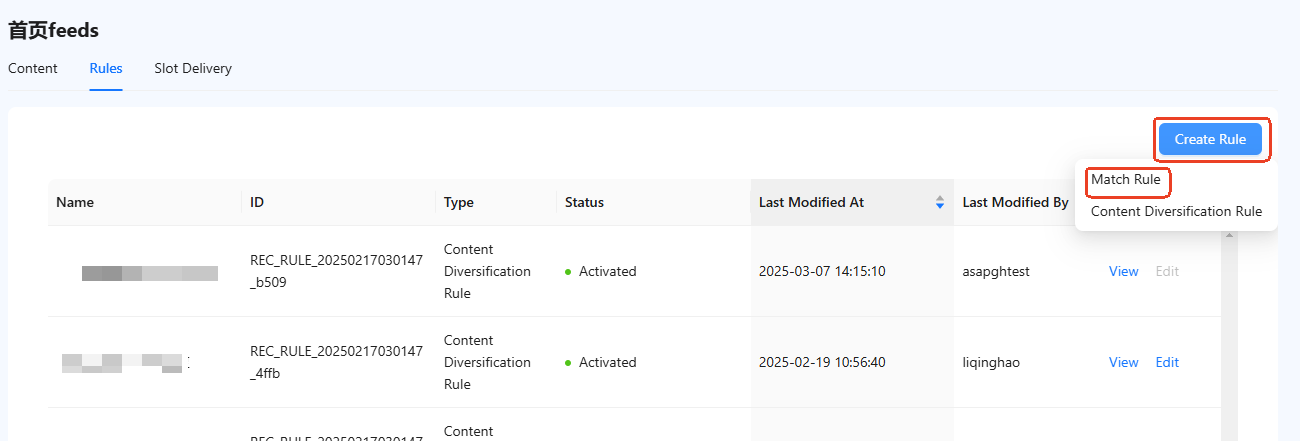
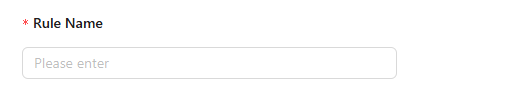
- Assign a unique name for the rule.
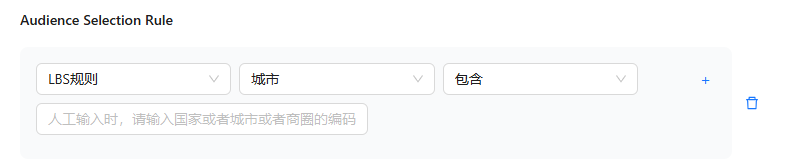
- Set the target audience for this rule. The audience can only be selected based on the Location-Based Service (LBS) rule. You can select audiences based on specific countries, cities, or business districts.
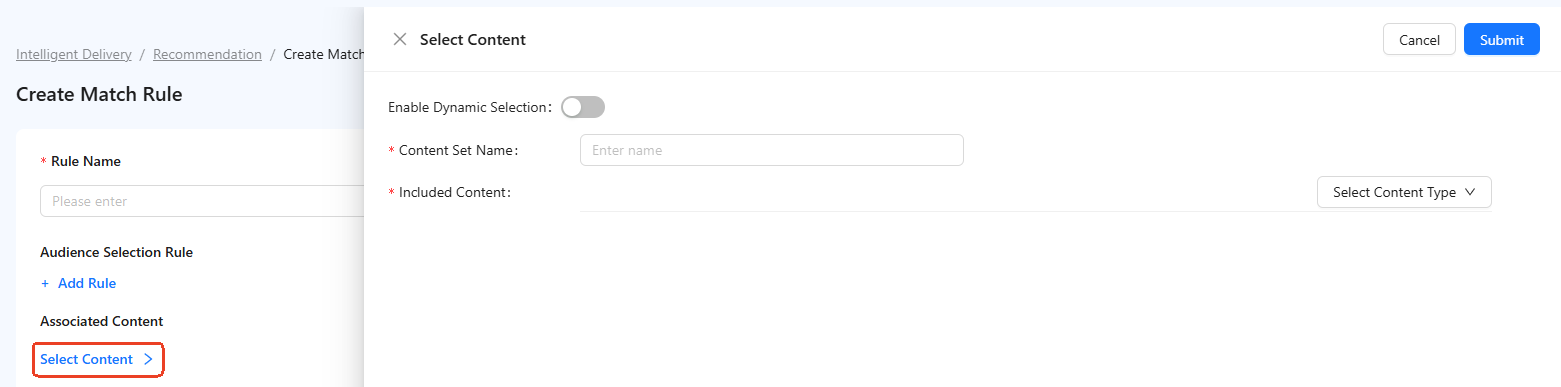
- Click Select Content to associate content with this rule.
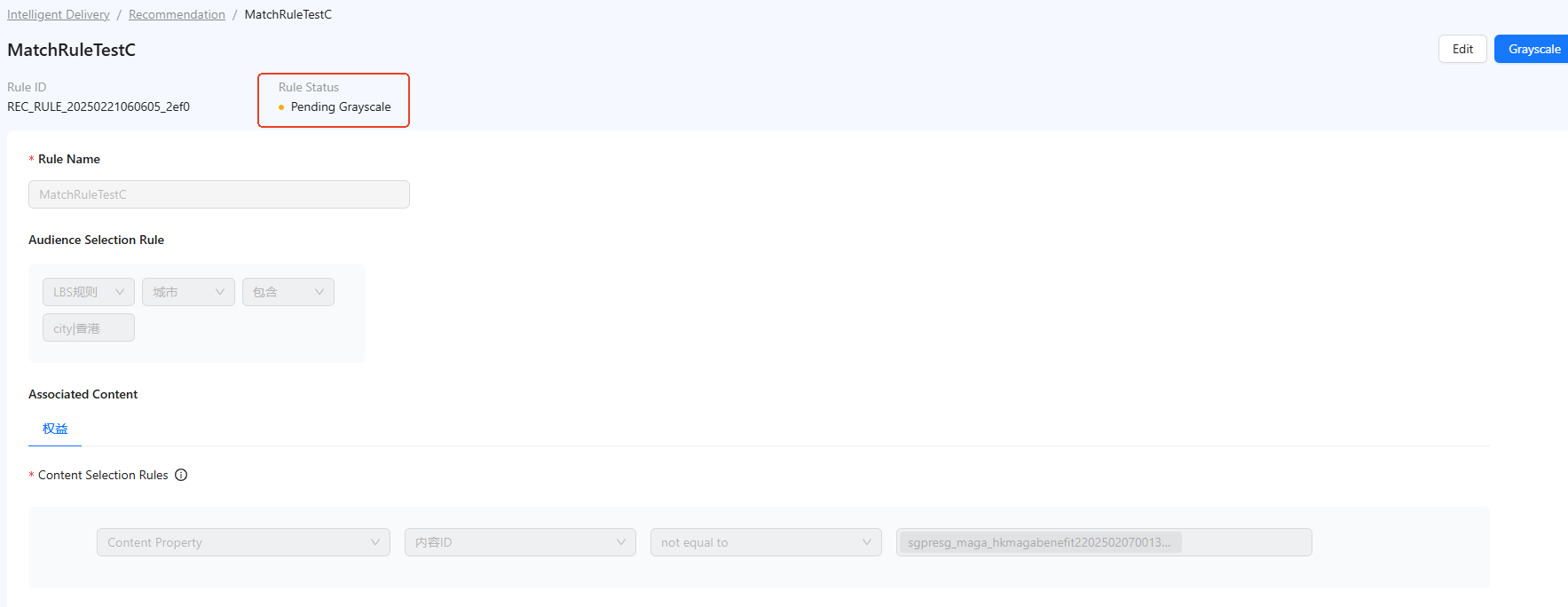
- Click Submit, and the rule is created with the pending grayscale status.
Status flow
Once the match rule is created, it enters the pending grayscale status. Refer to the following sections for the actions available for each status and their execution:
Pending grayscale
In this status, you can edit the rule or start the grayscale process. 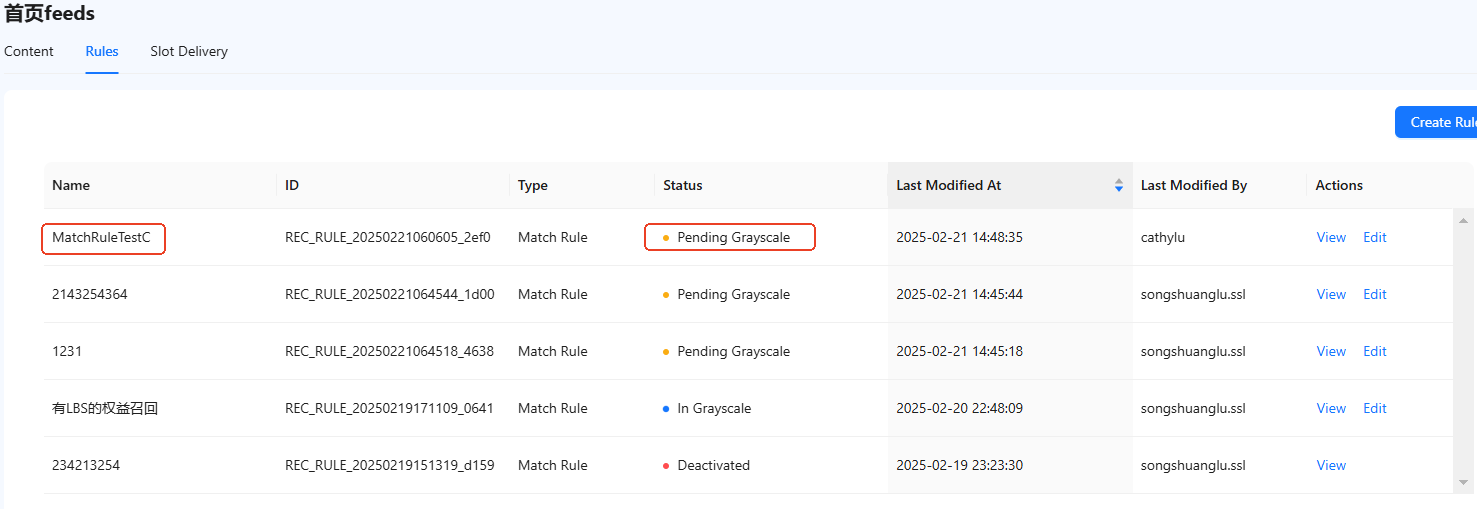
- Edit: Click Edit in the actions column or click View to access the rule's detail page, where you can also find the edit button at the top right. After editing and submitting, the rule's status remains 'Pending Grayscale'.
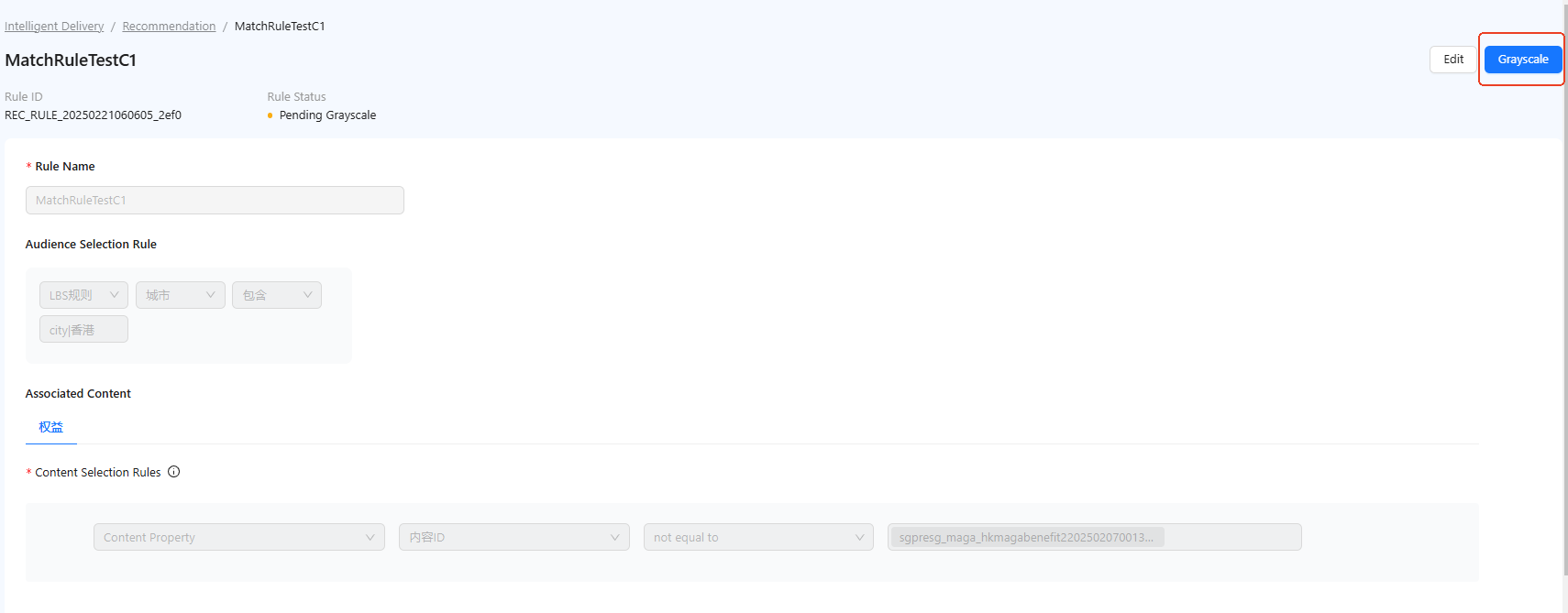
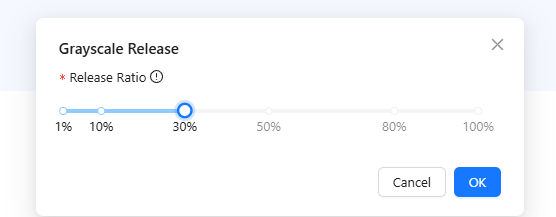
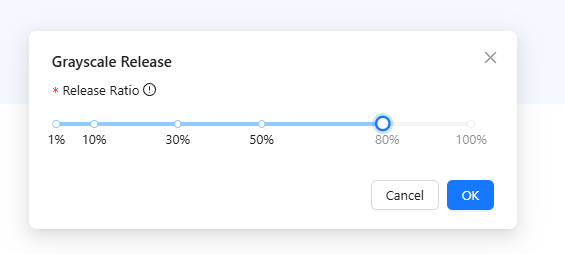
- Grayscale: Click Grayscale on the top right of the rule's detail page. Set the grayscale release ratio and click OK. The rule status is updated to 'In Grayscale'.
In grayscale
In this status, you can edit, adjust the grayscale release ratio, or activate the rules.
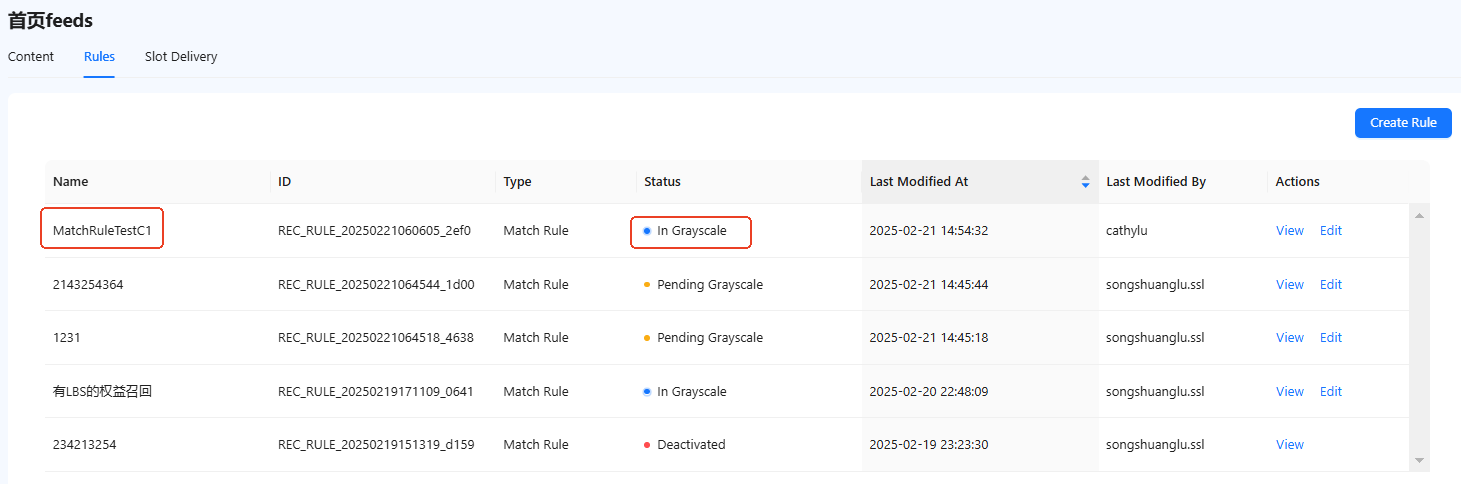
- Edit: Click Edit in the actions column to access the rule's editing page. Note that once you submit the changes, the rule status reverts to 'Pending Grayscale'.
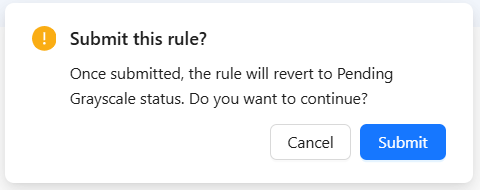
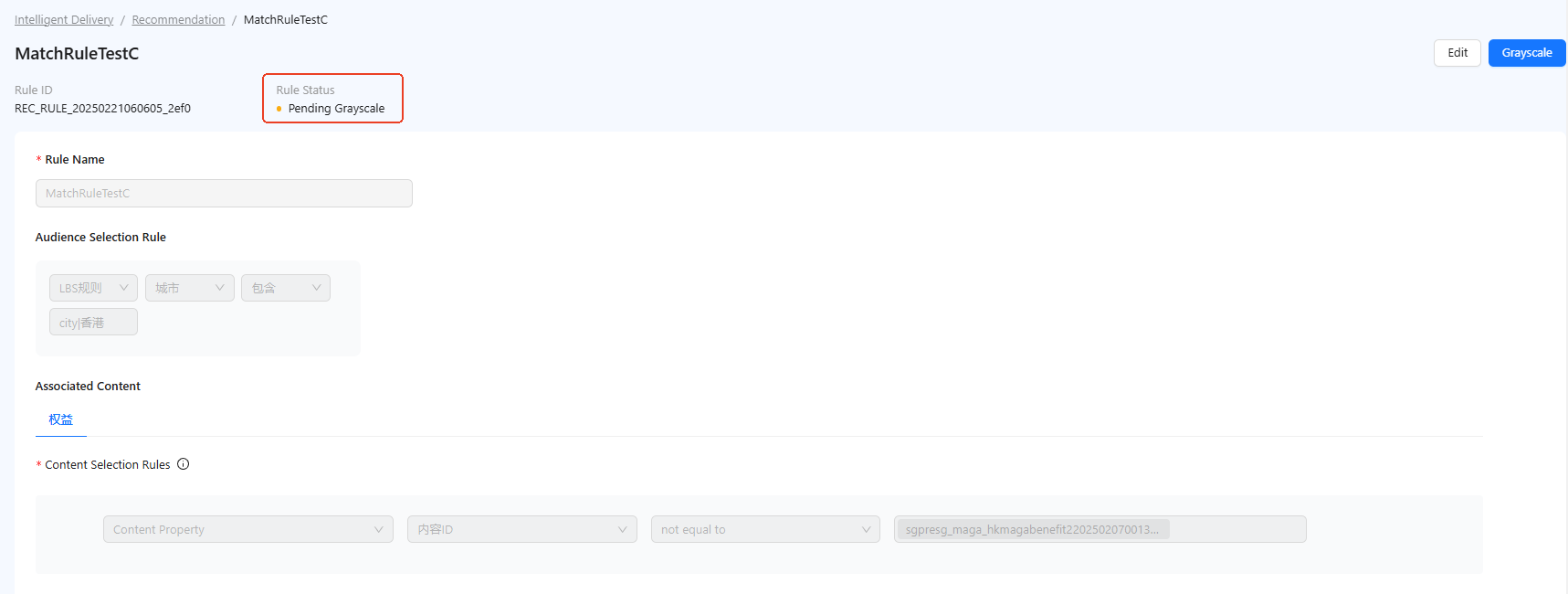
- Update Grayscale: Click Update Grayscale on the top right of the rule's detail page. Adjust the release ratio as needed and click OK.
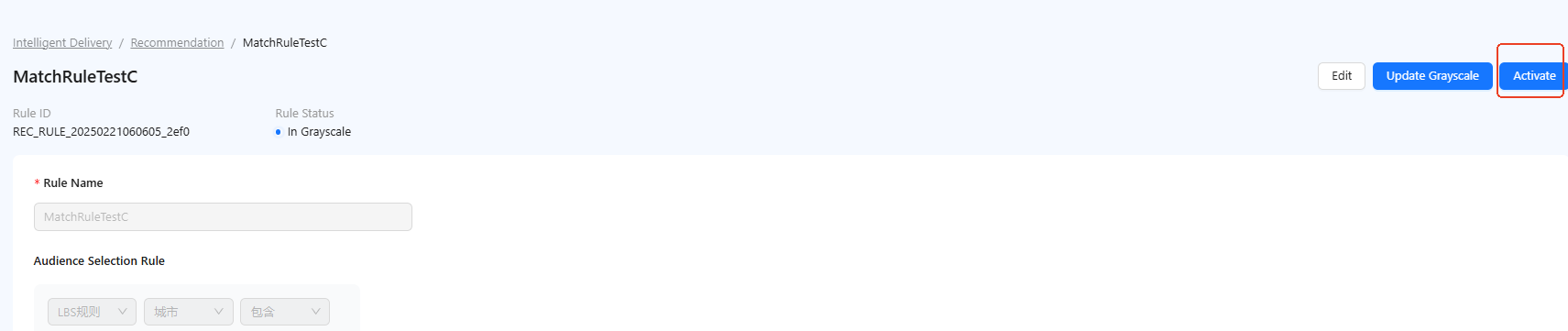
- Activate: Click Activate to make the rule live. After confirmation, the rule status is updated to 'Activated'.
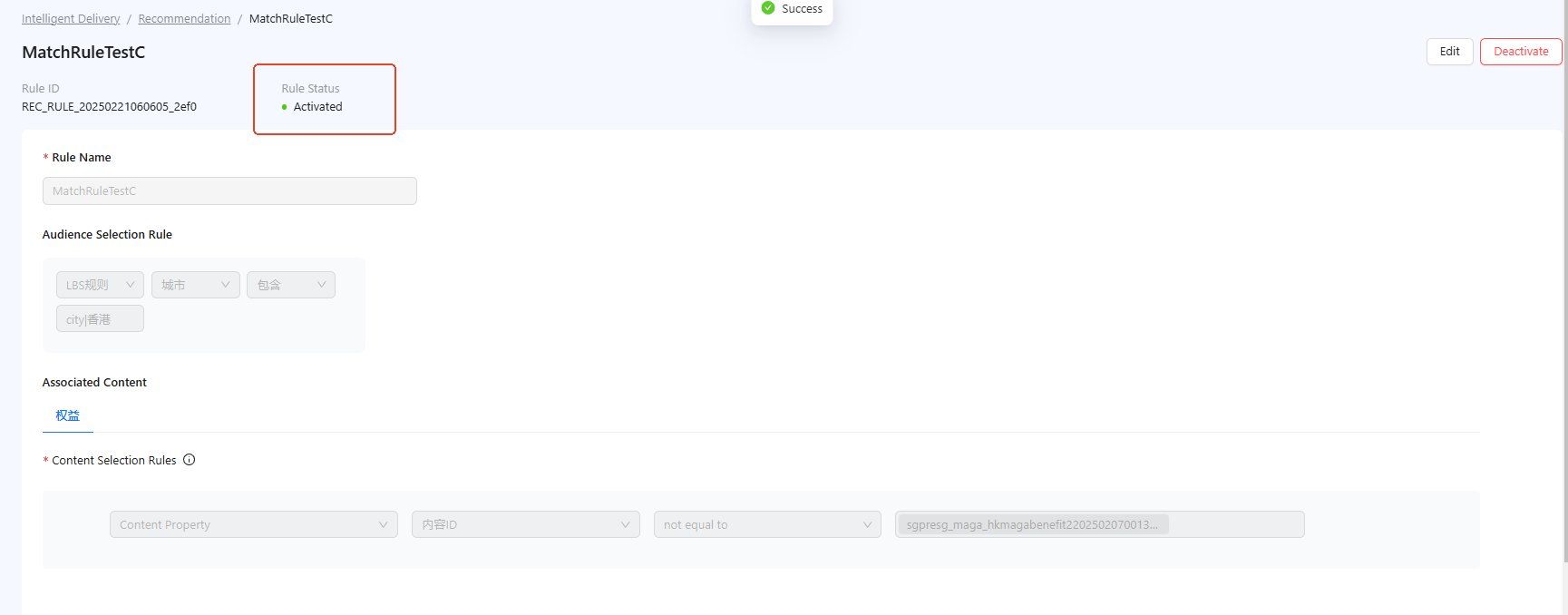
Activated
In this status, rules can be edited or deactivated.
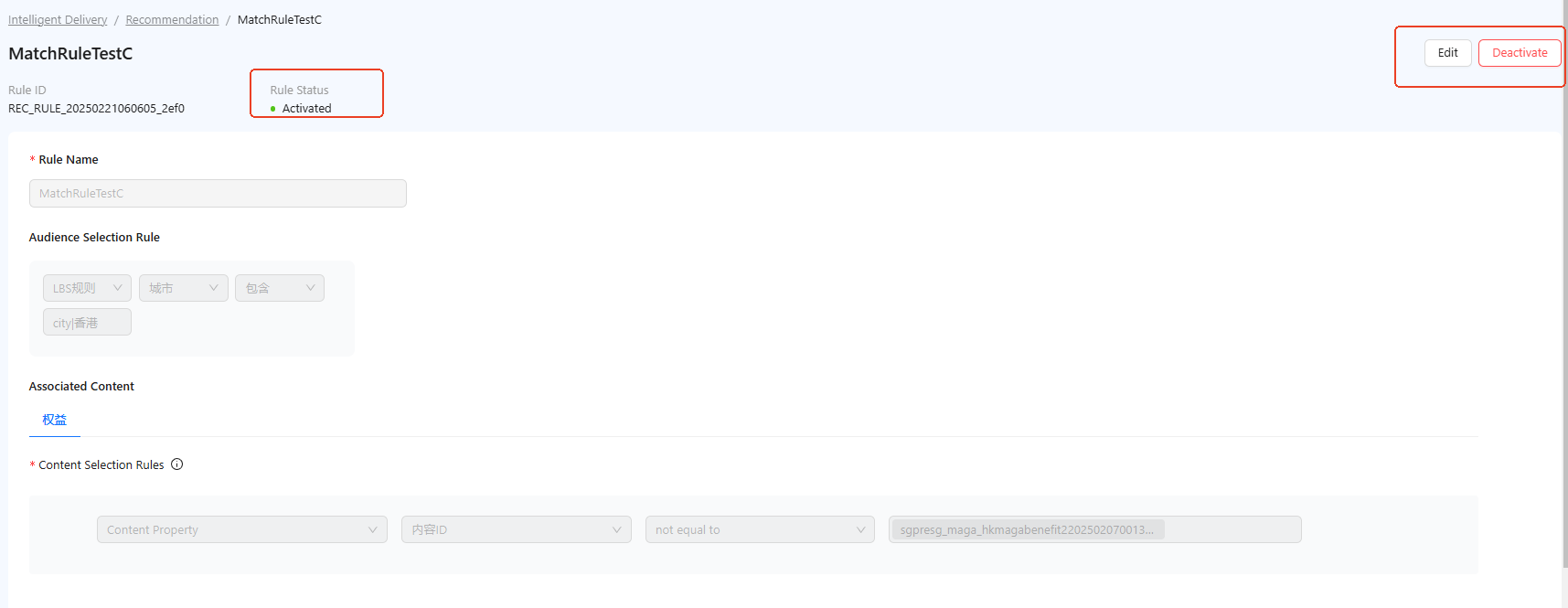
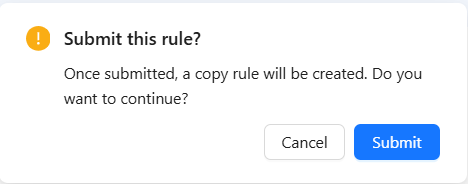
- Edit: Rules in the activated status can be edited. However, when you submit the changes, a copy of this rule is automatically created. The original version remains activated, while the copy's status defaults to pending grayscale and can continue through the release process. Once the copy's status becomes activated, it replaces the original version, which is then deactivated.
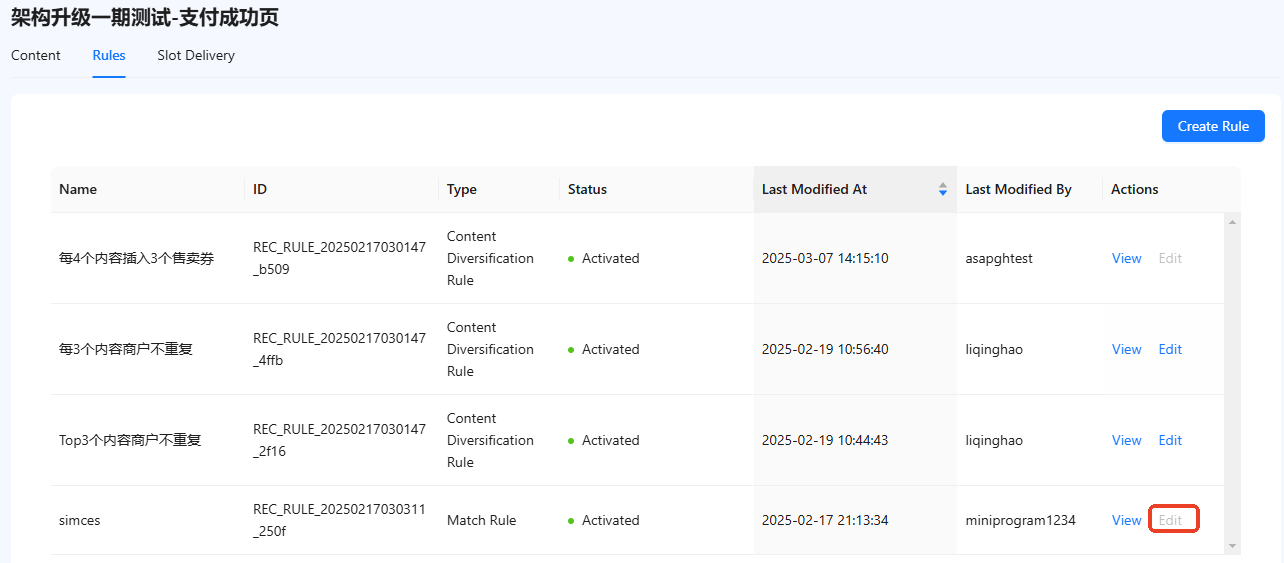
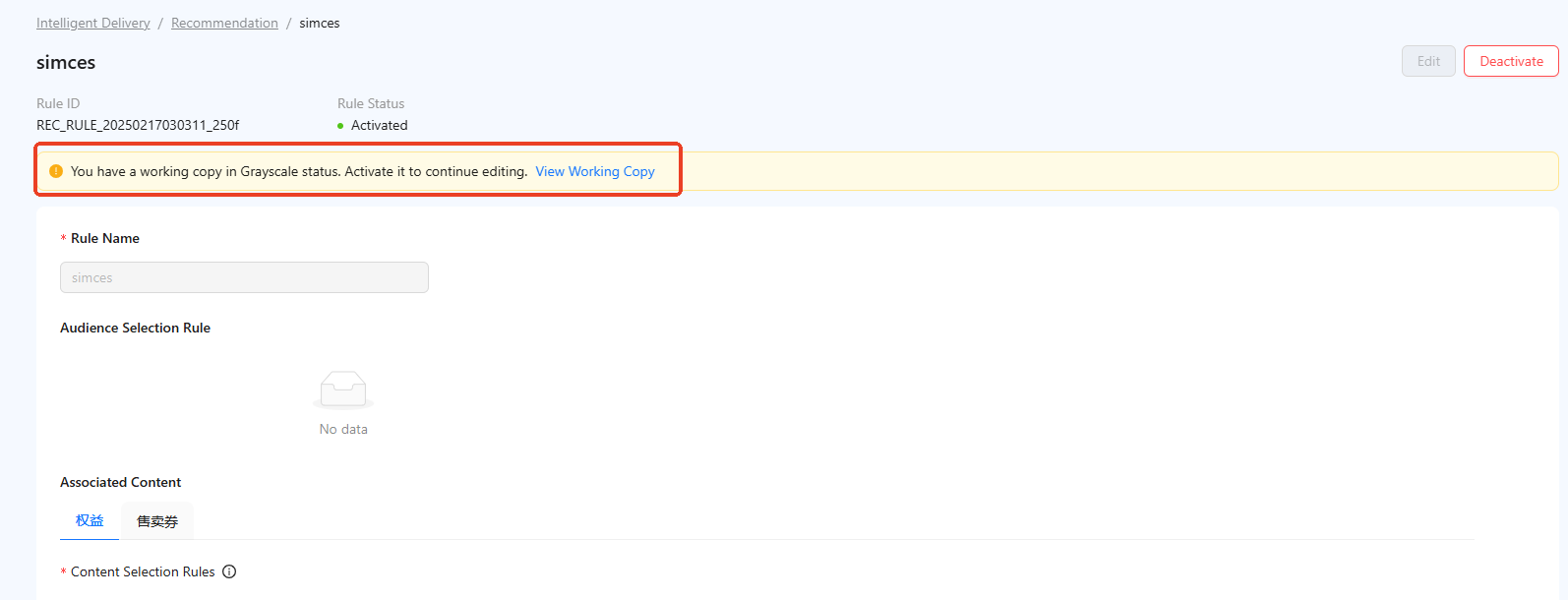
Note: If a rule has a working copy, the Edit button is disabled. To enable editing, click View to access the rule's detail page. Then, click View Working Copy in the yellow notification bar to activate the copy.
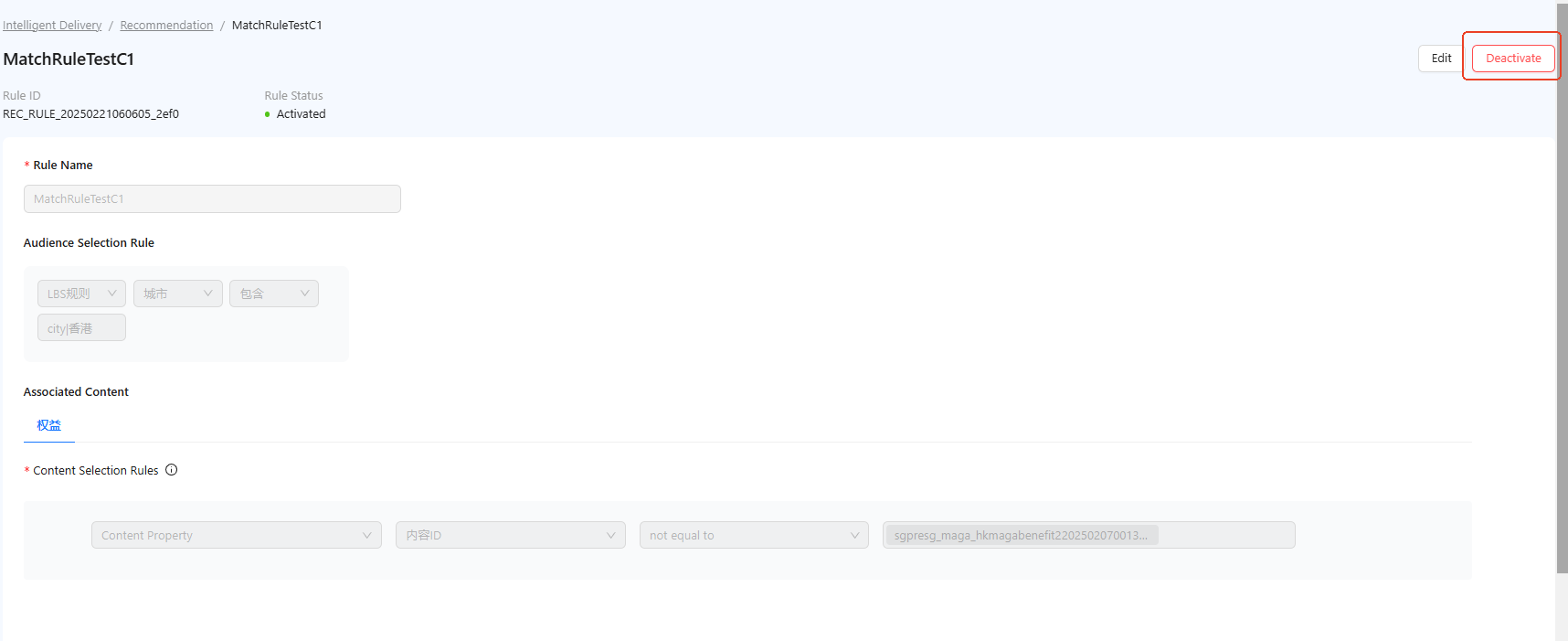
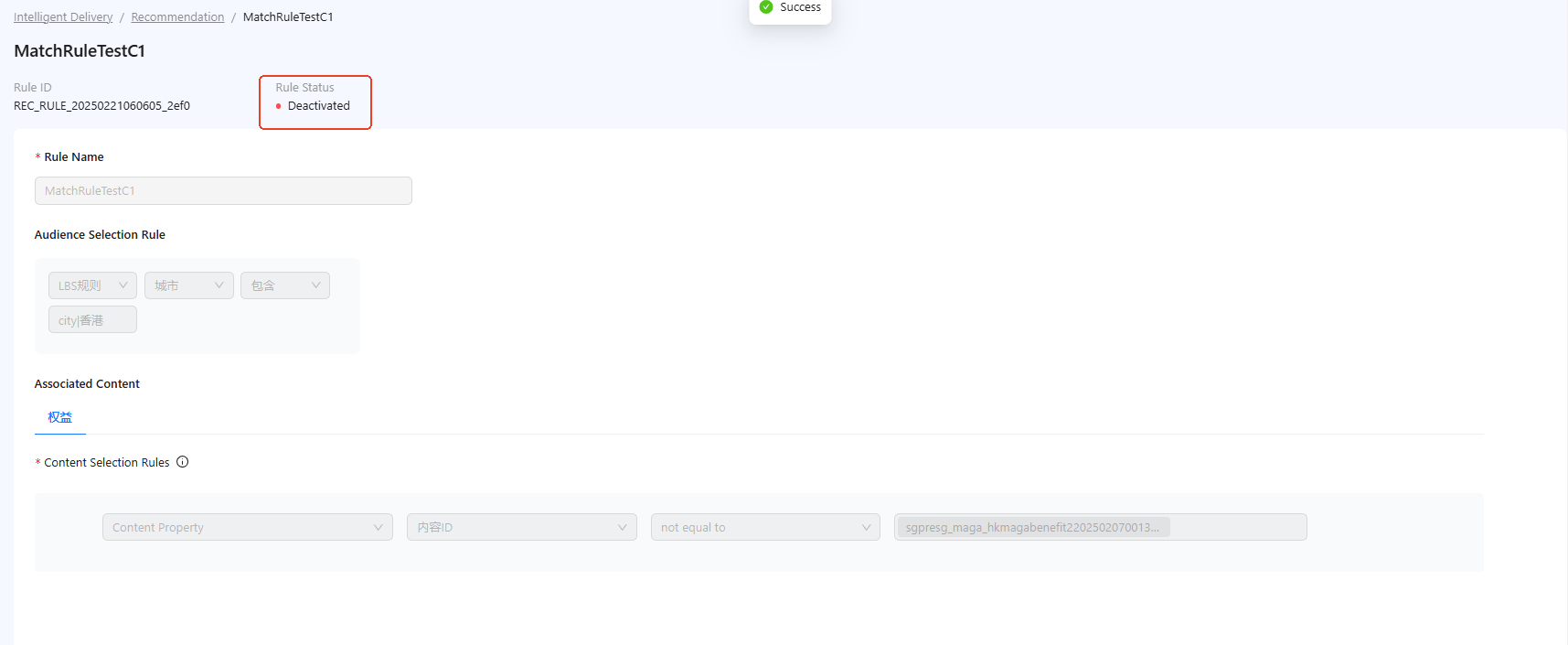
- Deactivate: Click Deactivate on the top right of the rule's detail page. After confirmation, the rule status is updated to 'Deactivated'.
Content diversification rules
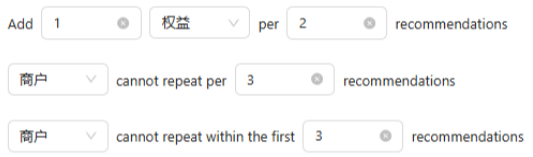
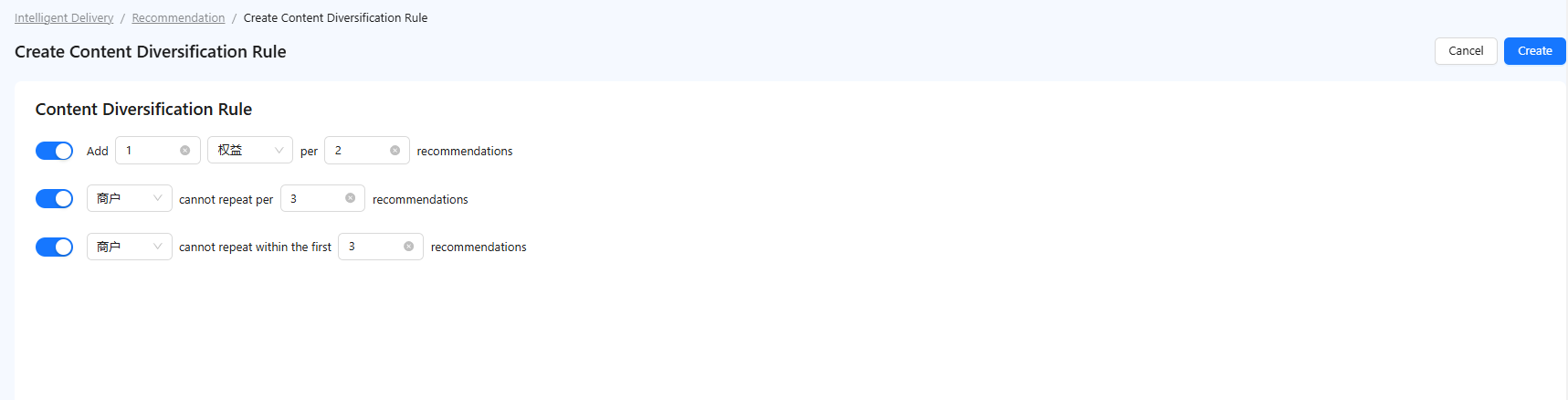
Content diversification rules outline the intervention strategy for ranking content in recommended spaces. The rules are prioritized from highest to lowest as first, second, and third.
In the event of conflicts, higher-priority rules take precedence.
Create a diversification rule
Take the following steps to create a diversification rule:
- Click Create Rule > Content Diversification Rule to access the rule creation page.
2. Turn on the rule configuration toggles and complete the configuration as needed.
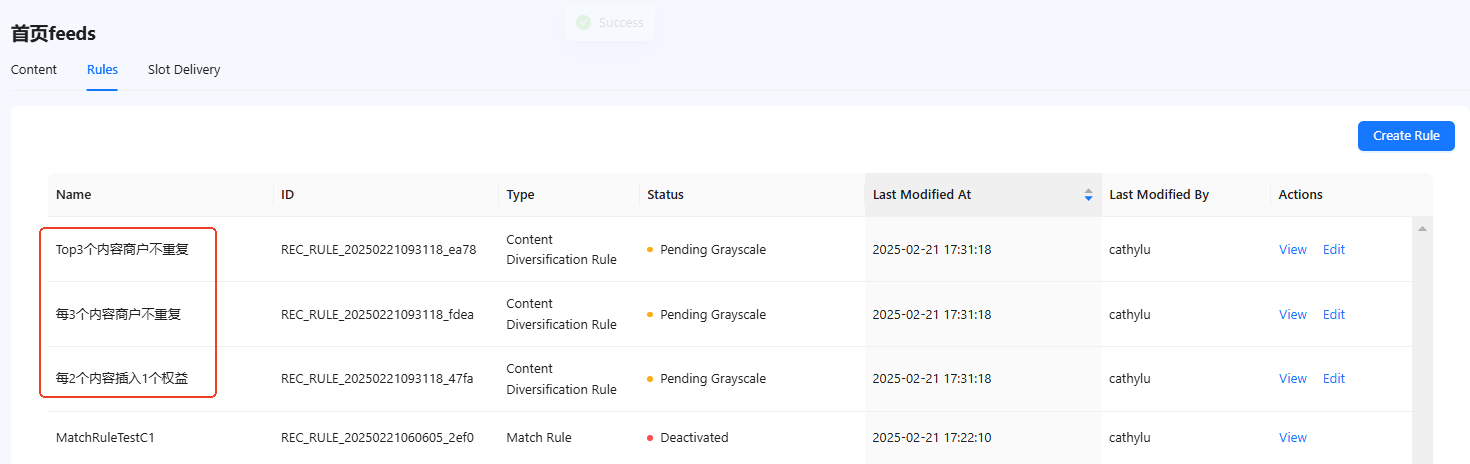
- Click Create to create rules.
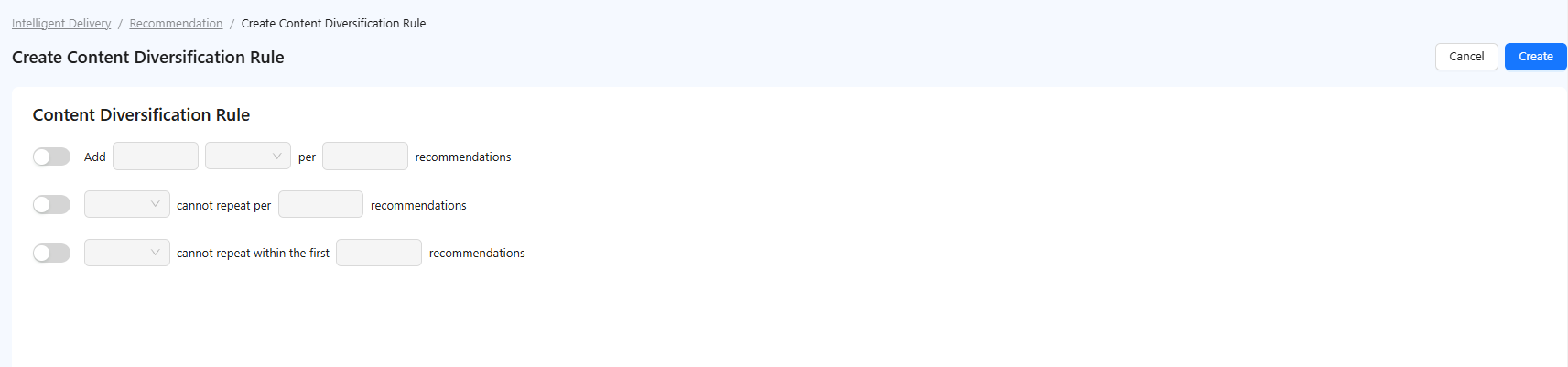
If all three rules have been configured and created, the toggle will be disabled, and no more rules can be created.
Status flow
The status flow for content diversification rules is identical to that of match rules. For details, please refer to the Status flow of the match rule for details.
Slot delivery
To deliver static creatives to recommended spaces, you must create delivery tasks by targeting specific slots. Begin by switching to the Slot Delivery tab.
Create task
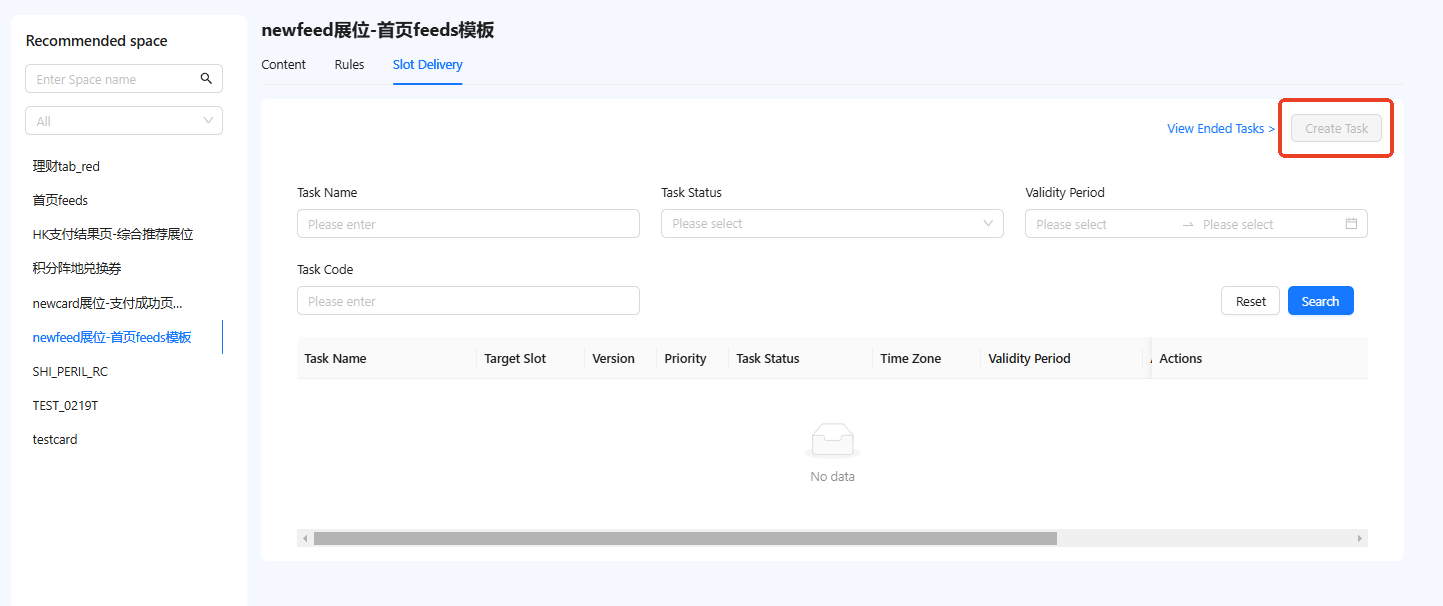
To deliver tasks to specific slots, the selected recommended space must have slots configured; otherwise, the Create Task button is disabled.
Click Create Task to access the creation page. For detailed instructions on configuring each module, refer to the following sections:
Note:
- The Target Slot field in the basic info section, though optional, must not be left empty.
- Contextual relevance and budget settings do not apply to slot delivery.
Task workflow
Task operations and workflows are consistent with those for operational placements. Refer to the Operational placement content for detailed instructions.