

Configure basic settings
The Settings module in the Mini Program platform allows you to manage brand identity, communication preferences, legal compliance, and operational workflows for your workspace.
By configuring these settings, you provide a secure and branded environment for developers, partners, and end users.
This guide walks you through each section in Basic Settings to help you make the most of these features.
Prerequisites
Only workspace admins can configure the basic settings of a tenant workspace.
Getting started
To configure the basic settings of a workspace, take the following steps:
- Log in to the Mini Program platform.
- Click the
 icon in the lower-left corner to navigate to the Settings module. The Settings page will load. You can configure settings at two levels:

- Tenant: Global settings that affect the entire workspace.
- Account: Settings specific to your individual user account.
- In the Basic Settings area of the Tenant tab, configure the specific settings.
Logo & Favicon
Your visual identity enhances your brand awareness. This section allows you to upload your brand's logo and favicon to create a consistent and unique user experience.
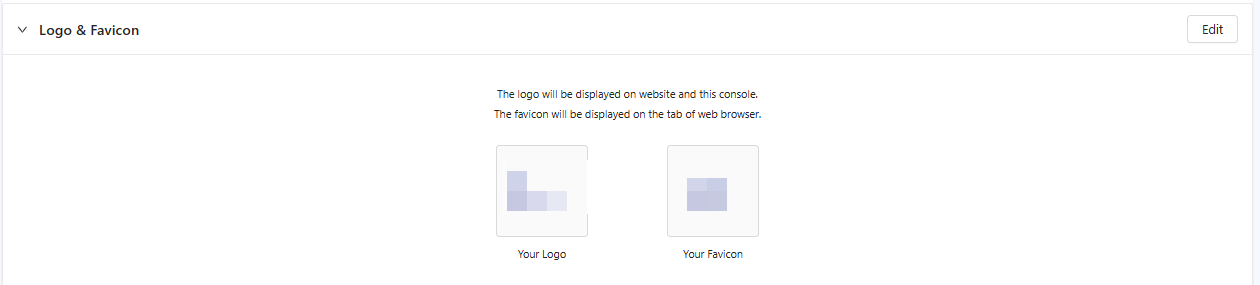
Figure 1. Logo & Favicon
- Logo: The logo of your organization. A clear and professional logo is essential for brand recognition. The logo appears on your Mini Program platform and console. It prominently represents your brand.
- Favicon: A small, branded icon associated with your organization. This icon appears on browser tabs when users access your mini program platform, the console, and the web pages of your mini programs. It aids navigation, especially when users have multiple tabs open, and reinforces your brand presence at a glance.
To upload or update your logo and favicon, click the Edit button in this section.
Service Email Preference
This section allows you to customize the service email that is used to communicate with your platform users, such as developers and operators. You can configure the email preferences, including the email address, email nickname, the SMTP server, and email logo to send all service-related notifications.Click Edit to configure the parameters.
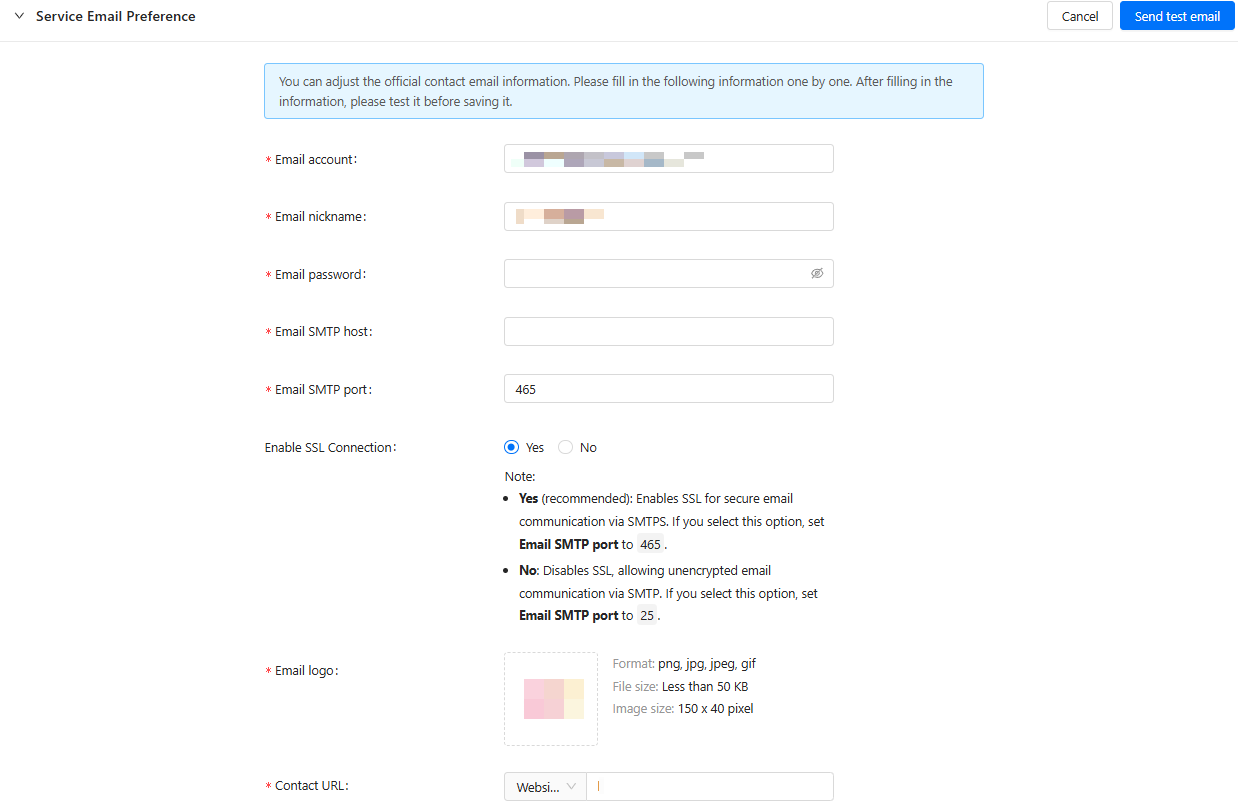
Figure 2. Service Email Preference
The following table describes the parameters.
Parameter | Description |
Email account | The email address used to send notifications, for example, |
Email nickname | The display name associated with the sending account. |
Email password | The password of your email account. |
Email SMTP host | The server address that handles outgoing mail, e.g., |
Email SMTP port | The network port number used to connect to the SMTP host, e.g., 25 for non-SSL, 465 for SSL. |
Enable SSL Connection | Whether to enable Secure Sockets Layer (SSL). Enable this toggle for a secure and encrypted connection to your SMTP server. |
Email Logo | Upload a logo to be included in the service emails. |
Contact URL | A link that can be used to contact the technical support. |
After saving your settings, you can click Send Test Email to test whether your configurations are correct and emails can be delivered as expected.
Domain Preference
This section allows you to configure custom domain and network settings for enhanced branding and security.
- Alternative Domain Name: Set up a custom domain to host your platform portal under your own brand instead of using the default platform URL. This enhances brand recognition.
- Outbound IP: Specify the static outbound IP addresses that the platform will use for server-to-server communication.

Figure 3. Domain Preference
URL of About Us
This simple yet effective setting lets you add a customizable About Us link to your mini program portals. This link can direct users to any URL you choose, helping you build trust, provide transparency, and drive traffic to your other web properties.
To configure it, click Edit and enter the full URL.

Figure 4. URL of About Us
Term of Service Agreement
This is a critical feature for legal compliance and risk management. It allows you to upload and manage the legal agreements that govern the relationship between your platform and your developers/users.
Click Edit to upload the following documents in PDF format:
- Terms of Service: The primary legal agreement defining the rules, permissions, and restrictions for using your platform.
- Privacy Policy: A mandatory document that explains how you collect, use, store, and protect user data, ensuring compliance with regulations.
- Cookie Notice: A statement informing users about the use of cookies on your platform.

Figure 5. Term of Service Agreement
Copyright Notice
The copyright notice is a formal declaration of your ownership of the platform's content and design. It is typically displayed in the footer of your platform portal.
A standard notice includes three parts:
- The copyright symbol
©or the word "Copyright." - The year the copyright is claimed.
- The name of the copyright owner.Example:
© 2024 Your Company Name. All Rights Reserved.
This notice serves as a public claim of ownership, deters unauthorized use of your intellectual property, and reinforces the legitimacy of your platform.

Figure 6. Copyright Notice