

Configure 2FA
Mini Program Platform supports the two-factor authentication (2FA) feature. 2FA is a security process in which users must provide two different authentication factors to verify their identity. In the Mini Program platform, the first authentication factor is your password. And the second authentication factor can be Google authentication codes or email verification codes.
The 2FA feature significantly enhances the security of your account. Even if your password is leaked, unauthorized logins are prevented because the second factor is required for access. This extra layer of security also protects your account from malicious attacks and data breaches.
This topic describes how to configure 2FA, such as activating 2FA and deactivating 2FA, for your account in Mini Program Platform.
Activate 2FA
To activate 2FA, perform the following steps:
- Log in to a Mini Program workspace as a workspace admin.
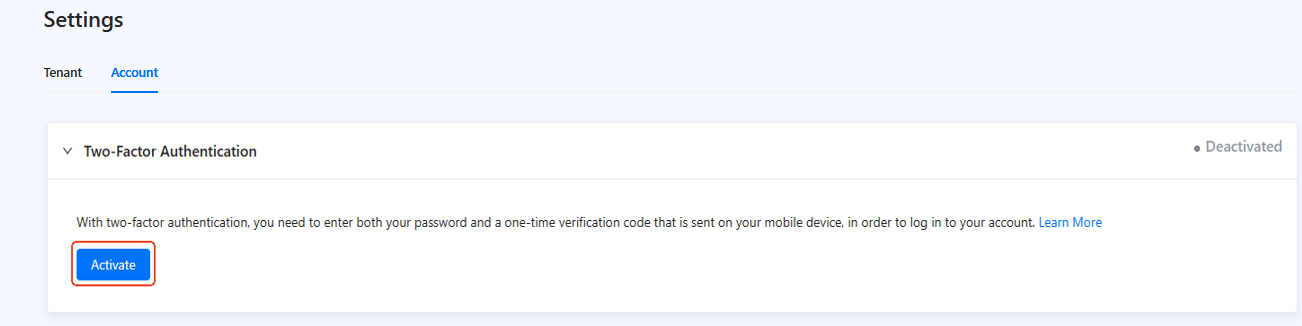
- Click the Settings icon in the bottom-left corner of the screen. On the Account tab, click Activate in the Two-Factor Authentication area.
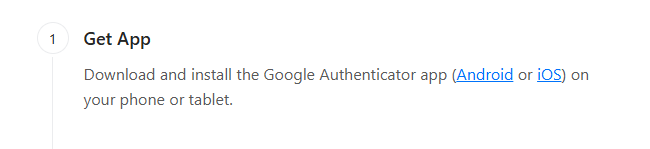
- Download the Google Authenticator app on your mobile device.
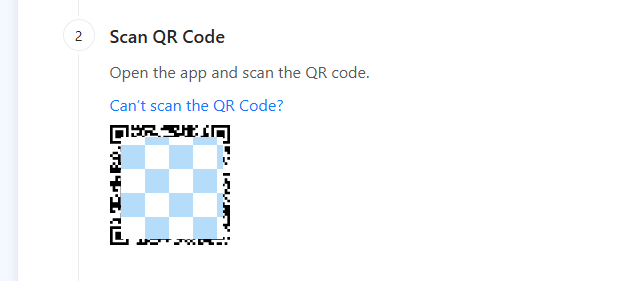
- Use the Google Authenticator app to scan the displayed QR code. Alternatively, hover over Can't scan the QR Code? to view a time-based key and manually enter the key into your authentication app to authenticate.
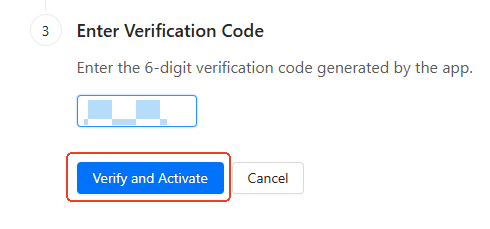
- Enter the 6-digit verification code generated by the Google Authenticator app in the input box and click Verify and Activate.
Deactivate 2FA
You can deactivate 2FA for a workspace after 2FA is activated:
- Log in to Mini Program Platform as a workspace admin.
- Click the Settings icon in the bottom-left corner of the screen. On the Account tab, click Deactivate in the Two-Factor Authentication area.
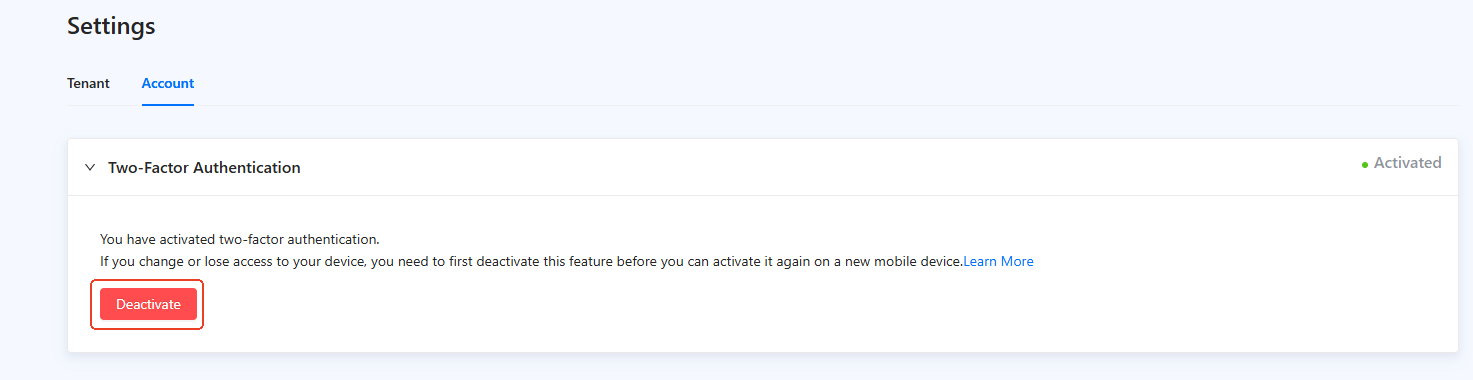
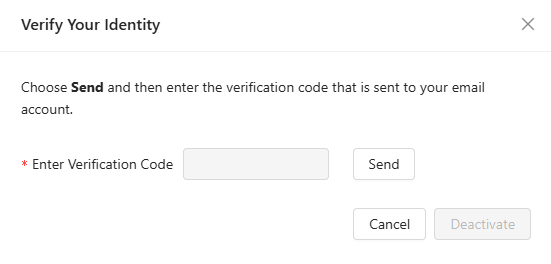
- Follow the on-screen instructions to verify your identity and deactivate 2FA.
Note:
- If you do not activate 2FA for your account and the super app activates 2FA, you must pass the 2FA configured by the super app, such as the primary authentication and secondary authentication methods, when logging in to the workspace.
- You may not be able to deactivate 2FA if this is not allowed by the super app.