

Manually integrate SDK
This topic introduces how to manually integrate the IAPMiniProgram SDK into an iOS Xcode project, without using CocoaPods. Follow the procedure to complete the integration.
Prerequisites
Before you begin, make sure that:
- To run mini-programs, your device needs to be iOS 11 or later.
- Xcode 14.0 or later is installed.
- You have a valid MiniProgram platform account with SDK download permission.
- Your project can build successfully before integration.
Procedures
Step 1. Get SDK and resource bundle
Download SDK
- Open the MiniProgram platform, sign in with your account
- Go to the SDK download page, select the SDK version that matches your project, and download it.
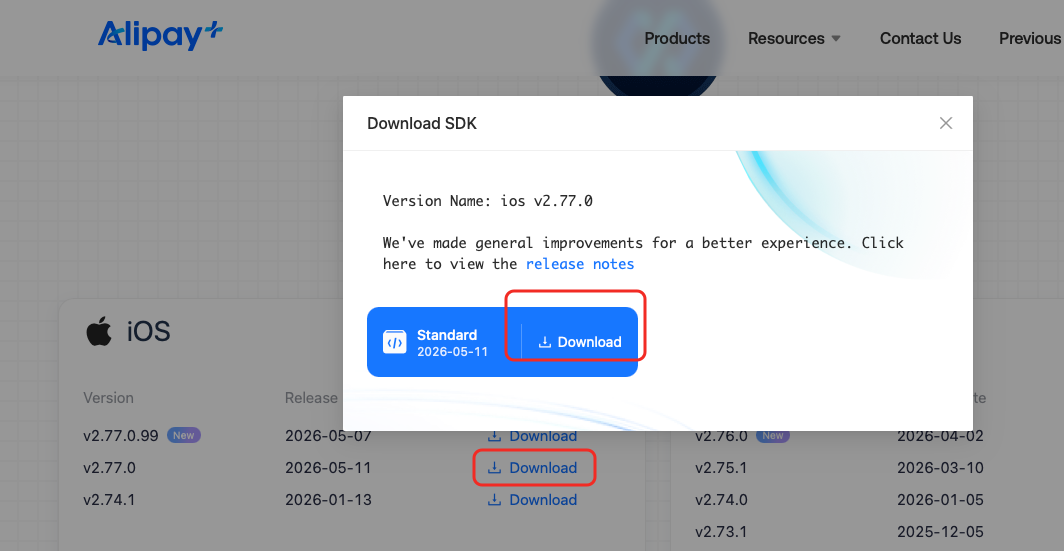
SDK overview
The SDK includes a required base/required component, and a set of optional components:
- The base component is
IAPMiniProgram, which must always be integrated. - Optional components can be added on demand, e.g.
IAPMiniProgram_Video.
For example, The SDK includes IAPMiniProgram and IAPMiniProgram_Video.
The table below lists the mapping between components and the corresponding folder names in the manual SDK package, and the capability that each module provides. Use it to identify which folders to import for each capability.
For more information about SDK components, see the Integrate SDK components topic.
Components | Folder | Capability description | Required |
IAPMiniProgram | IAPMiniProgram | Core runtime of the mini-program container. It includes the | Yes |
IAPMiniProgram/ACManifest | IAPMiniProgram_ACManifest | Provides the capability to parse the mini-program manifest and expose metadata to the container. It includes the | No |
IAPMiniProgram/ACTranslation | IAPMiniProgram_ACTranslation | Provides on-device translation of mini-program content. It includes the | No |
IAPMiniProgram/AppleMap | IAPMiniProgram_AppleMap | Provides Apple Map–based map component and location JSAPIs. It includes the | No |
IAPMiniProgram/BioAuth | IAPMiniProgram_BioAuth | Provides Biometric authentication (Face ID / Touch ID) JSAPIs. It includes the | No |
IAPMiniProgram/Bluetooth | IAPMiniProgram_Bluetooth | Provides Bluetooth (BLE) discovery, connection, and data exchange JSAPIs. It includes the | No |
IAPMiniProgram/GoogleMap | IAPMiniProgram_GoogleMap | Provides Google Map–based map component and location JSAPIs. It includes the | No |
IAPMiniProgram/Inspection | IAPMiniProgram_Inspection | Provides inspection capabilities. It includes the | No |
IAPMiniProgram/Legacy | IAPMiniProgram_Legacy | Provides Alipay Connect features. It includes the | No |
IAPMiniProgram/Localization | IAPMiniProgram_Localization | Multi-language resources and locale switching for container UI. It includes the | No |
IAPMiniProgram/Lottie | IAPMiniProgram_Lottie | Lottie animation rendering inside mini-programs. It includes the | No |
IAPMiniProgram/Media | IAPMiniProgram_Media | Audio/video capture and playback, including recording JSAPIs. It includes the | No |
IAPMiniProgram/Operation | IAPMiniProgram_Operation | Mainly includes data monitoring and release management etc. For more information, see Integrate the operation module topic. It includes the | No |
IAPMiniProgram/Video | IAPMiniProgram_Video | Dedicated video playback component for the It includes the | No |
Step 2. Import SDK
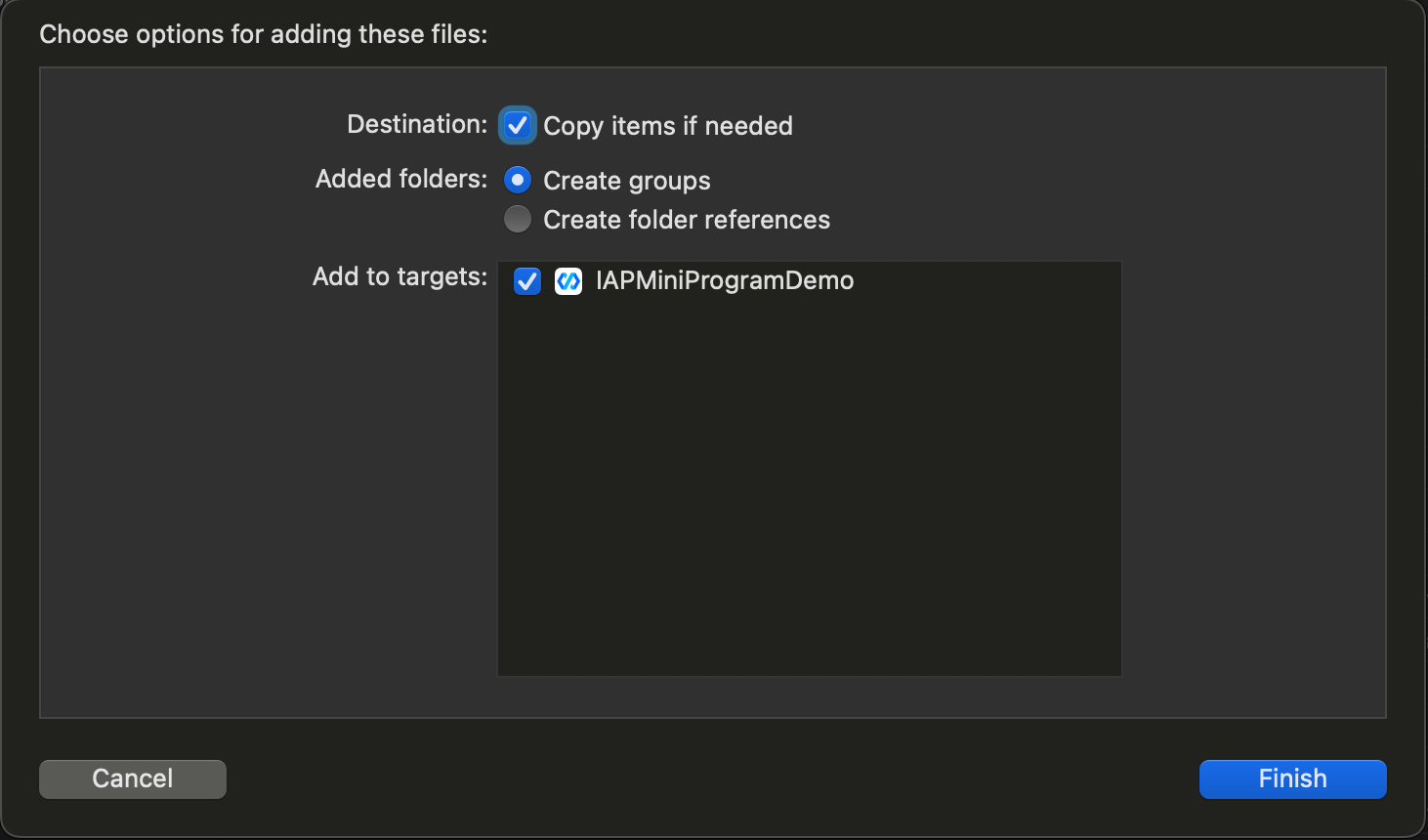
- Unzip all frameworks and bundles into the top-level directory of your Xcode project.
- In the file dialog, make sure to select Copy items if needed.
Step 3. Set framework embed state
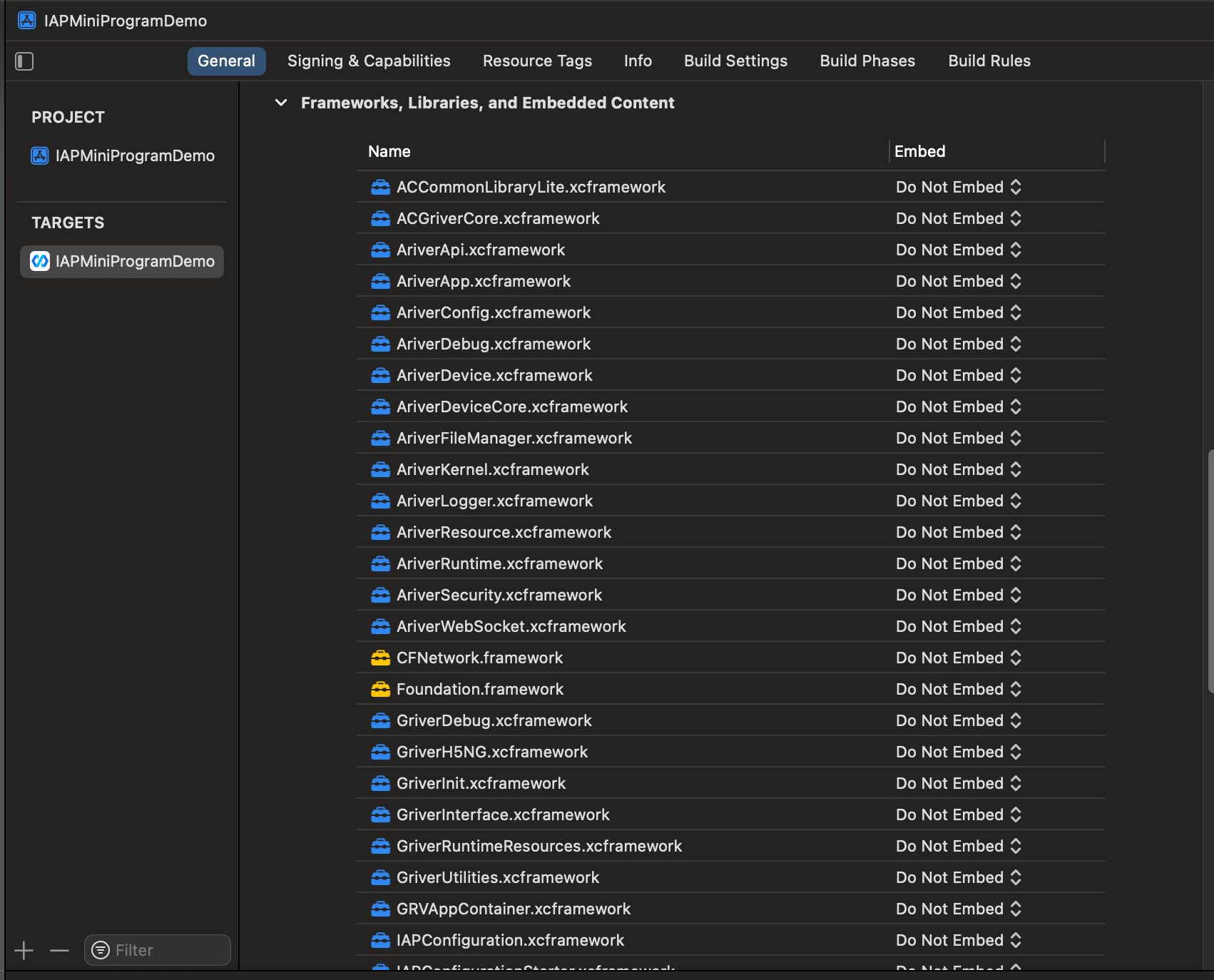
- Click the General tab of your Xcode project target.
- Under Frameworks, Libraries, and Embedded Content, set every applet-SDK-related xcframework to Do Not Embed.
Step 4. Add bundles
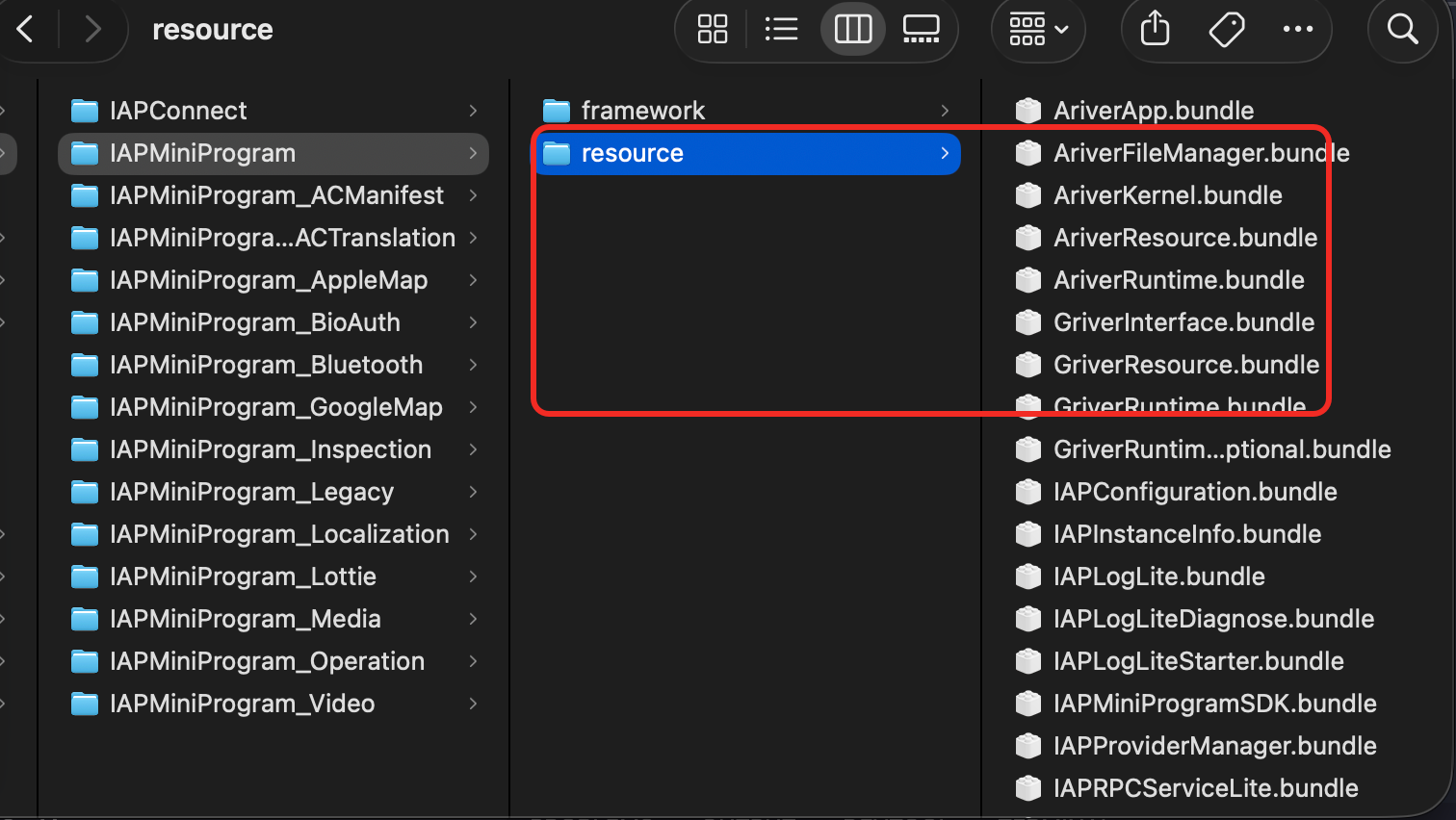
- Locate the bundle files inside the
resourcedirectory of each SDK module, as shown in the following example. - Add all bundles to Build Phases → Copy Bundle Resources.
Step 5. Add SDK dependencies
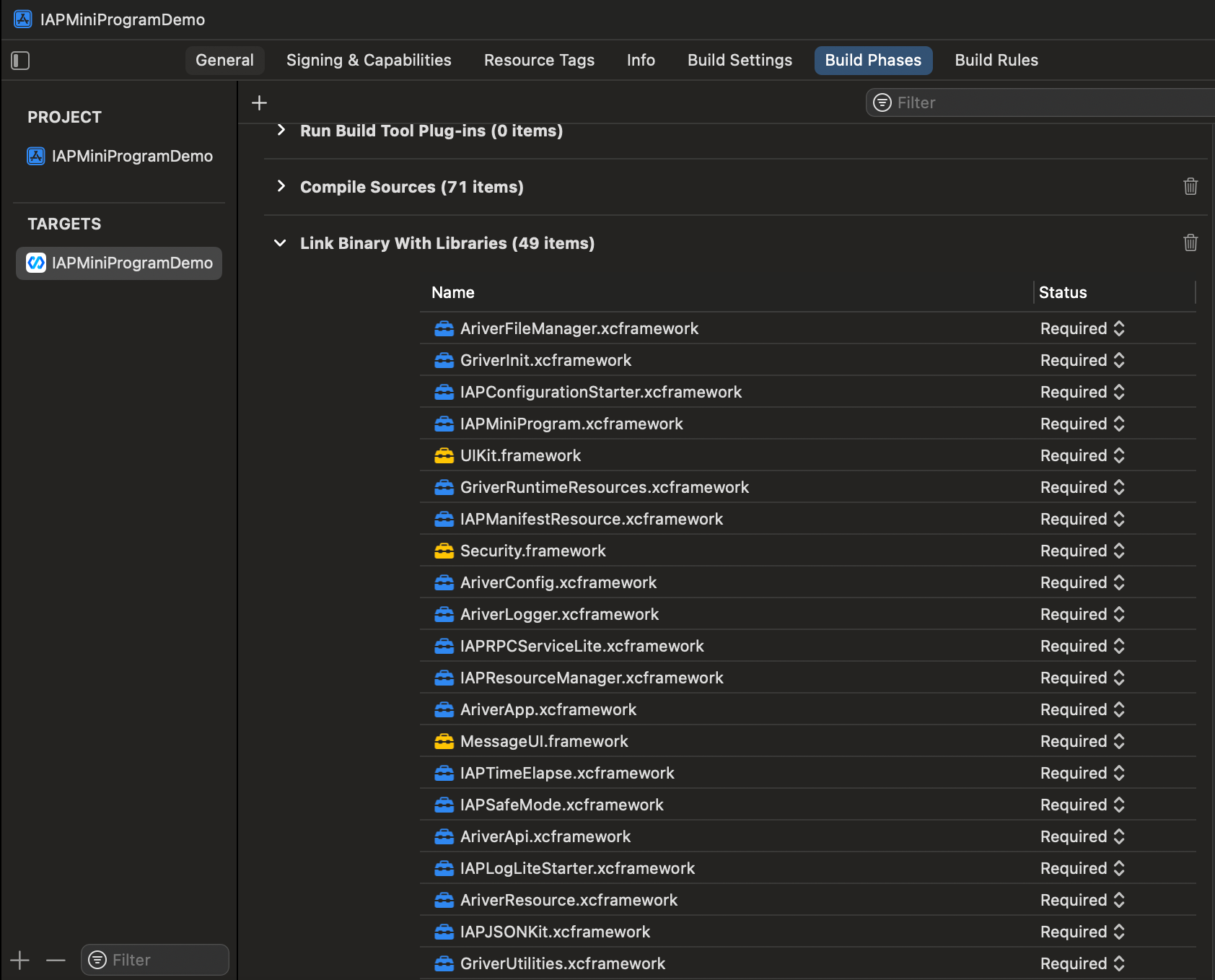
- Click the Build Phases tab of your Xcode project target.
- Under Link Binary With Libraries, add the following system frameworks and libraries:
libc++.tbdlibicucore.tbdlibxml2.tbdlibz.tbdlibiconv.tbdMessageUI.frameworkSecurity.framework
Step 6. Set "Other Linker Flags"
- Click the Build Settings tab of your Xcode project target.
- Under Linking - General → Other Linker Flags, add the following code:
-ObjC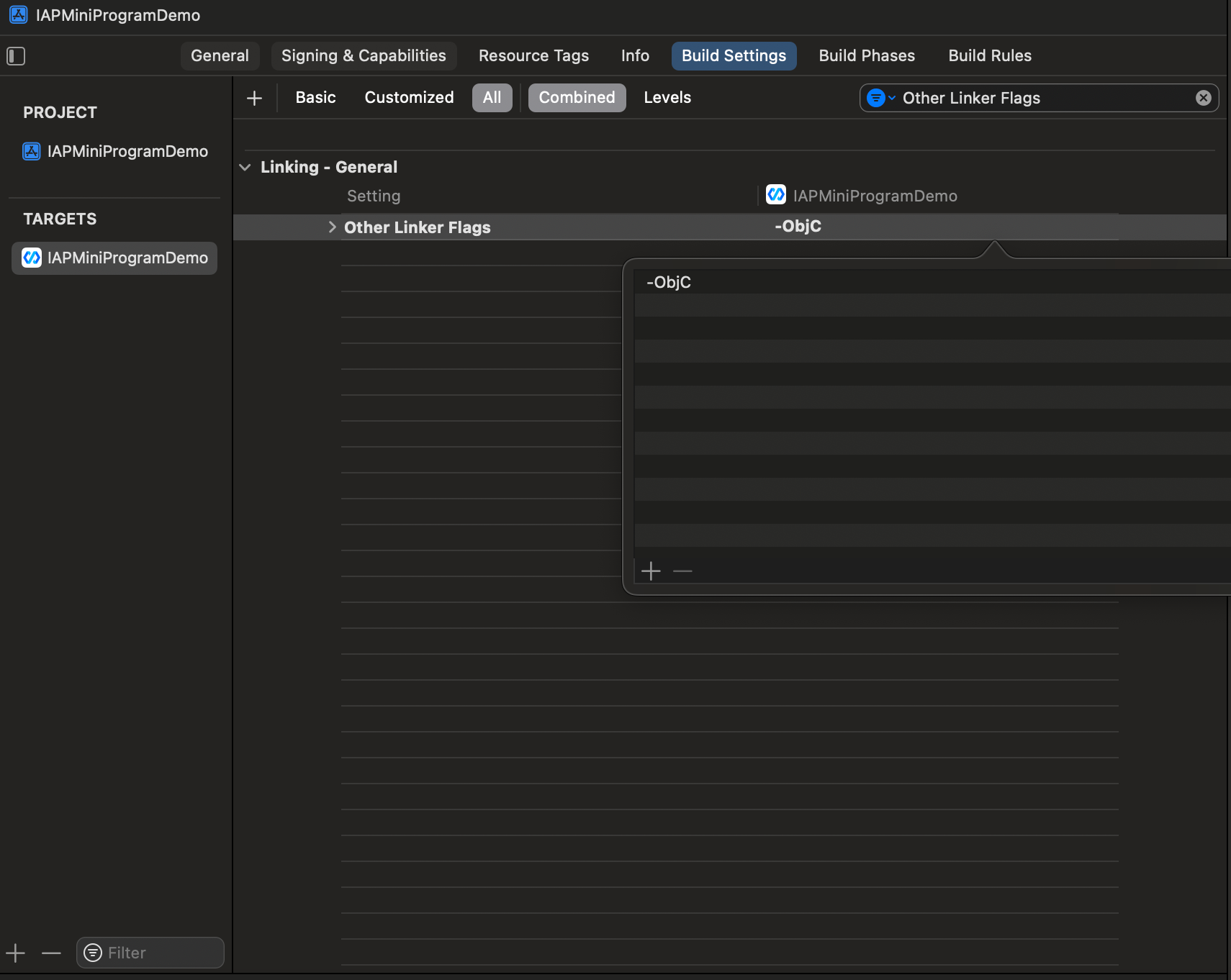
Step 7. Add SSZipArchive
The SDK requires SSZipArchive 2.4.3 or later. You can download it from the official GitHub repository, or use the copy bundled with the SDK package.
- Download and unzip SSZipArchive.
- Copy the extracted files into the top-level directory of your Xcode project. Make sure to select Copy items if needed.
- Under Build Settings → Apple Clang - Preprocessing → Preprocessor Macros (
GCC_PREPROCESSOR_DEFINITIONS), add the following macros to bothDebugandRelease:
HAVE_INTTYPES_H
HAVE_PKCRYPT
HAVE_STDINT_H
HAVE_WZAES
HAVE_ZLIB
$(inherited)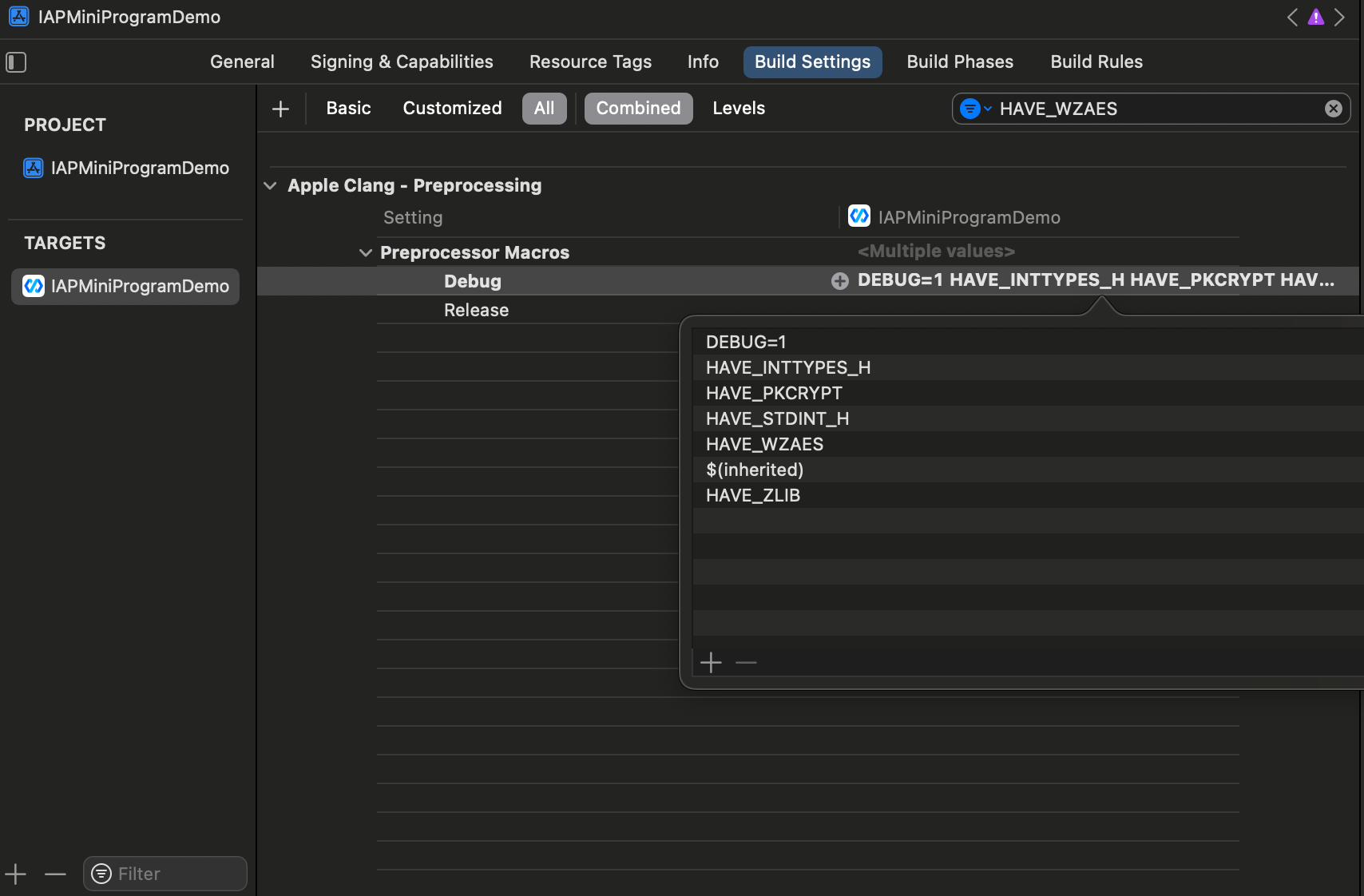
Step 8. Add SocketRocket
The SDK requires SocketRocket. You can download it from the official GitHub repository, or use the copy bundled with the SDK package.
- Download and extract
SocketRocket-0.5.1. - Copy the extracted files into the top-level directory of your Xcode project. Make sure to select Copy items if needed.
Step 9. Verify the integration
After completing the previous steps:
- Clean the build folder (Product → Clean Build Folder, or
Shift + Cmd + K). - Build your project. The build should succeed with no missing-symbol or missing-resource errors.
- Launch the app and initialize the SDK. Confirm that no bundle-loading or framework-embedding warnings appear in the console.
If the build fails, check the following common issues:
- Undefined symbols for
SSZipArchive/SocketRocket: verify that the source files are added to your app target's Compile Sources. bundle not foundat runtime: verify that every.bundleunder each module'sresourcedirectory is added to Copy Bundle Resources.dyld: image not found: verify that all SDK xcframeworks are set to Do Not Embed and that-ObjCis present in Other Linker Flags.