

Force removal approvals
The Force Removal tab on the Approvals page in the Mini Program platform serves as a centralized hub for managing all force removal-related requests, including warnings, rectifications, and force removals. It provides a clear and efficient workflow for both request submitters and approvers.
This topic walks you through the features of the Force Removal tab. You will learn how to:
- Navigate and view lists of force removal requests.
- Filter and sort requests to find what you need.
- Examine the detailed information for each request.
- Approve, reject, and withdraw requests.
Getting started
To get started, take the following steps:
- Log on to the Mini Program platform.
- After accessing the workspace, click
 in the lower-left corner to navigate to the Approvals page.
 - On the Approvals page, you can view requests in the workspace.

- My Approvals: This tab displays requests that are assigned to you for review and action.
- My Requests: This tab displays requests that you have submitted.
To view force removal requests, click the Force Removal category below the main tabs. You can also search for a mini program by name or ID.
View force removal requests
View request list
The request list summarizes all force removal requests. Each row represents a single request and contains the following columns.
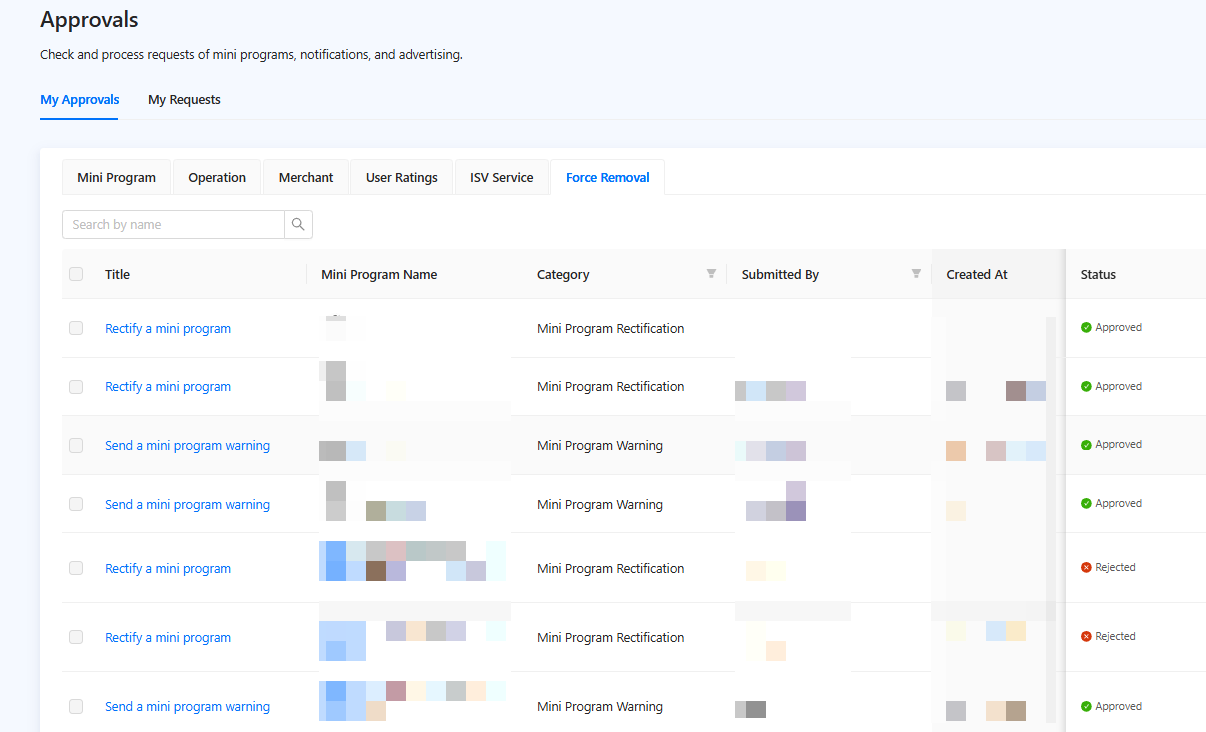
Figure 1. Force removal request list
Column | Description |
Title | A brief, descriptive title for the request. Click on the title to navigate to the detailed view of that specific request. |
Mini Program Name | The name of the mini program associated with the request. |
Category | The type of the request. You can filter the list by one or more categories:
|
Submitted By | The name of the user who submitted the request. You can filter the list by this field. |
Created At | The date and time the request was submitted. |
Completed On | The date and time the request was finalized (approved, rejected, or withdrawn). |
Status | The current stage of the request in the approval workflow. You can filter the list by one or more states:
|

View a request
To review the full details of a request, click on its title in the request list. This will open the request detail page, which contains comprehensive information organized into several sections.
- Request details: At the top of the page, you'll find key metadata about the request, including the requestor, request creation time, current status, and the assigned reviewer.
- Request information: This section displays the specific details of the enforcement action being requested. The information shown here varies depending on the request's Category:
- For a Mini Program Removal request, this section includes:
- Mini Program Information: the logo, name, tagline, type, admin, category, description, and entrance URL of the mini program.
- Reason for Force Removal: the reason to force remove the mini program.
- For a Mini Program Warning request, this section includes:
- Mini Program Information: the logo, name, tagline, type, admin, category, description, and entrance URL of the mini program.
- Warning Information: the warning details, including the title, target app, rectification deadline, and version.
- For a Mini Program Rectification request, this section includes:
- Rectification Information: the mini program version, rectification content, and associated warning information.
- Mini Program Information: the logo, name, tagline, type, admin, category, description, and entrance URL of the mini program.
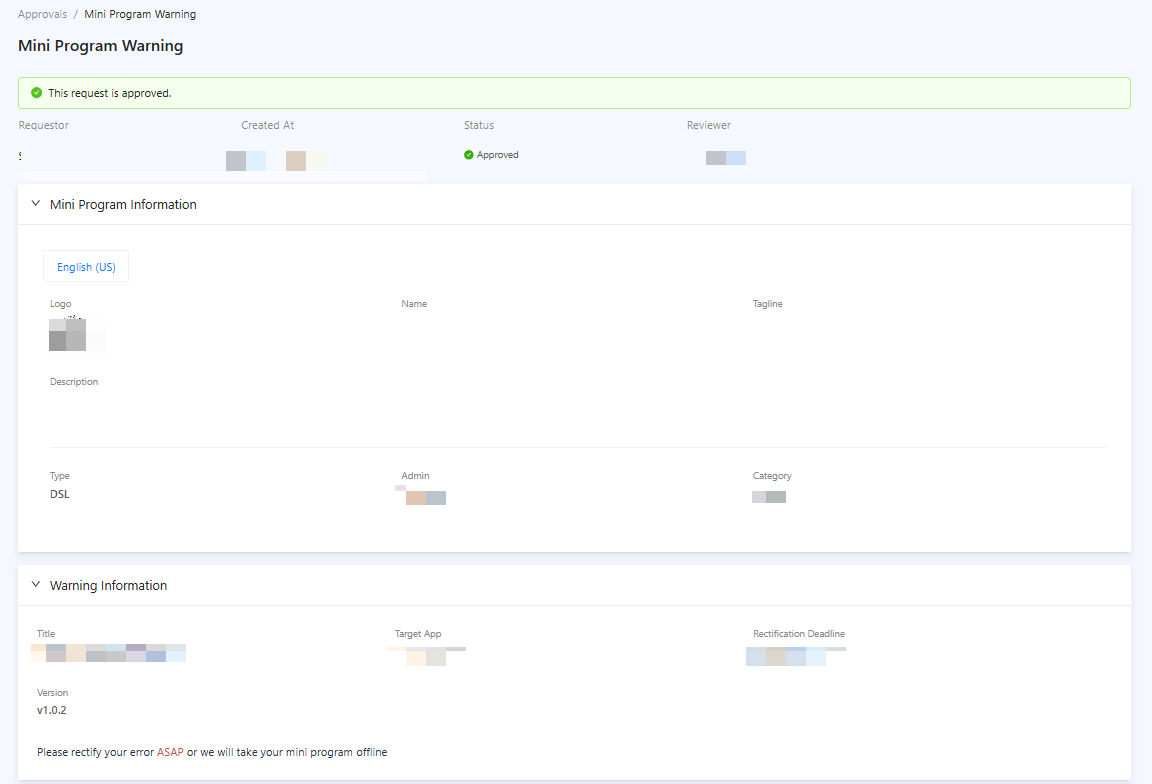
Figure 2. Request Information
- Release Process Overview: This section provides a visual timeline that shows different stages of the approval workflow and highlights the current stage.
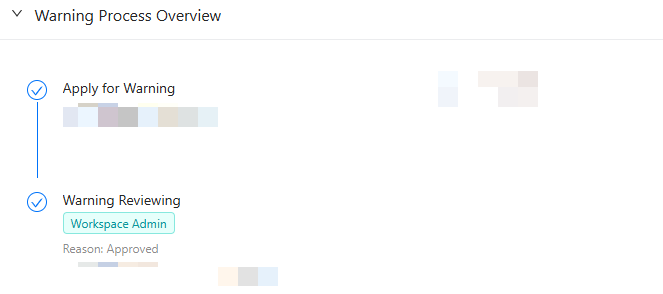
Figure 3. Release Process Overview
Approve a force removal request
To approve a force removal request, take the following steps:
- Log on to the Mini Program platform.
- After accessing the workspace, click in the lower-left corner to navigate to the Approvals page.
- On the Approvals page, locate the request to approve in the My Approvals tab.
- Click the request's title to open the detail page.
- After reviewing the information, click Approve in the top-right corner of the page.
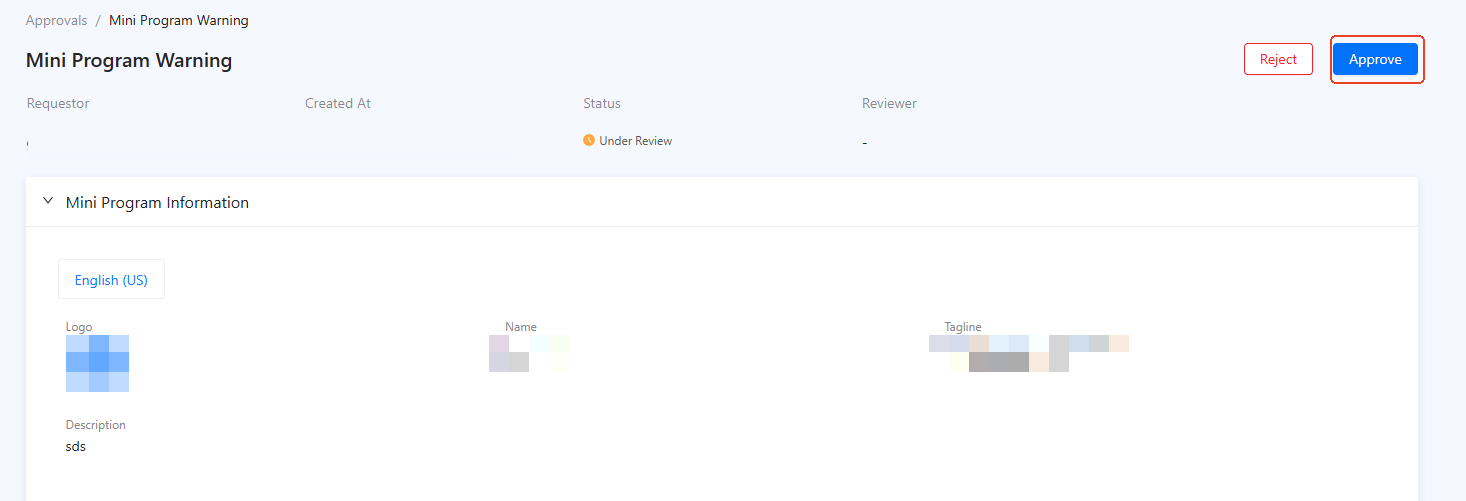
Figure 4. Approve a request
6. In the displayed dialog, click Approve.
After approval, the request is marked as Approved and the message "This request is approved." is displayed at the top area.
Reject a force removal request
To reject a force removal request, take the following steps:
- Log on to the Mini Program platform.
- After accessing the workspace, click in the lower-left corner to navigate to the Approvals page.
- On the Approvals page, locate the request to reject in the My Approvals tab.
- Click the request's title to open the detail page.
- After reviewing the information, click Reject in the top-right corner of the page.
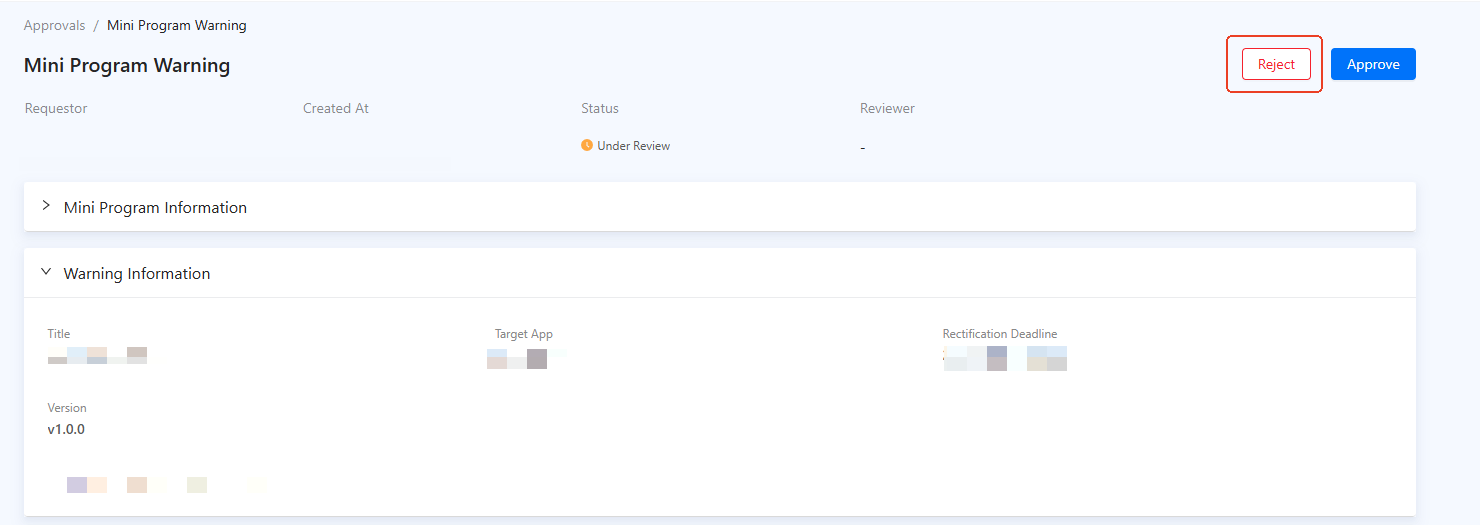
Figure 5. Reject a request
6. In the displayed dialog, enter a reason for rejection and click Reject.
After rejection, the request status is marked as Rejected and the rejection reason is displayed on the request details page.
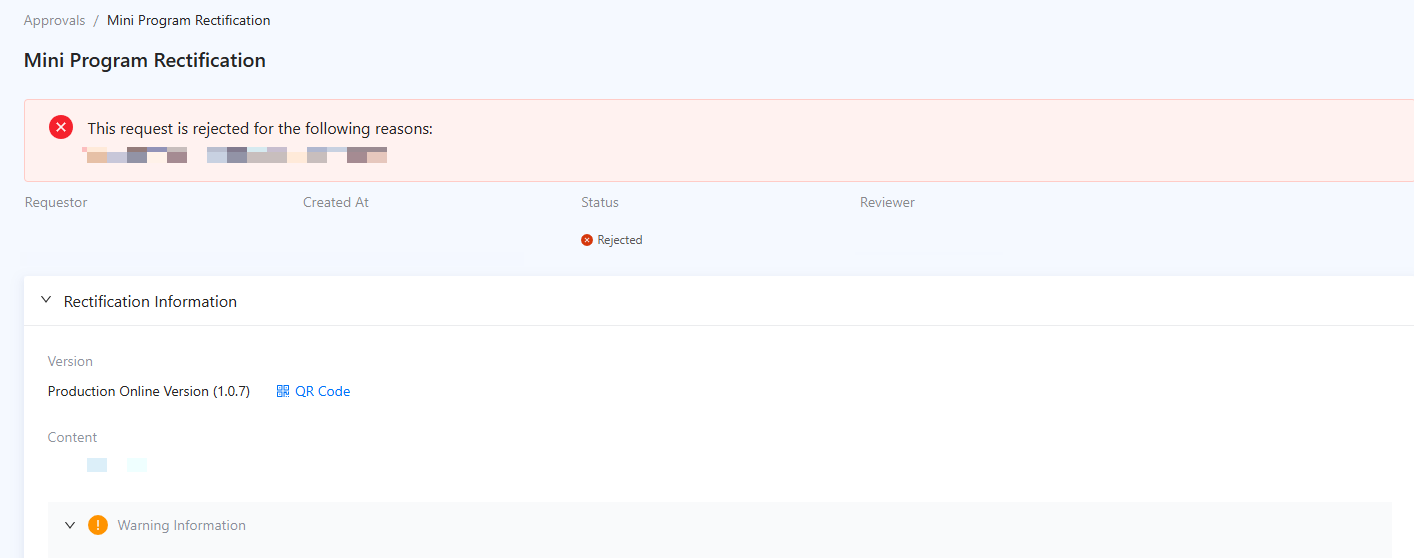
Figure 6. Request rejected
Withdraw a force removal request
To withdraw a force removal request, take the following steps:
- Log on to the Mini Program platform.
- After accessing the workspace, click in the lower-left corner to navigate to the Approvals page.
- On the Approvals page, locate the request to withdraw in the My Requests tab.
- Click the request's title to open the detail page.
- After reviewing the information, click Withdraw in the top-right corner of the page.
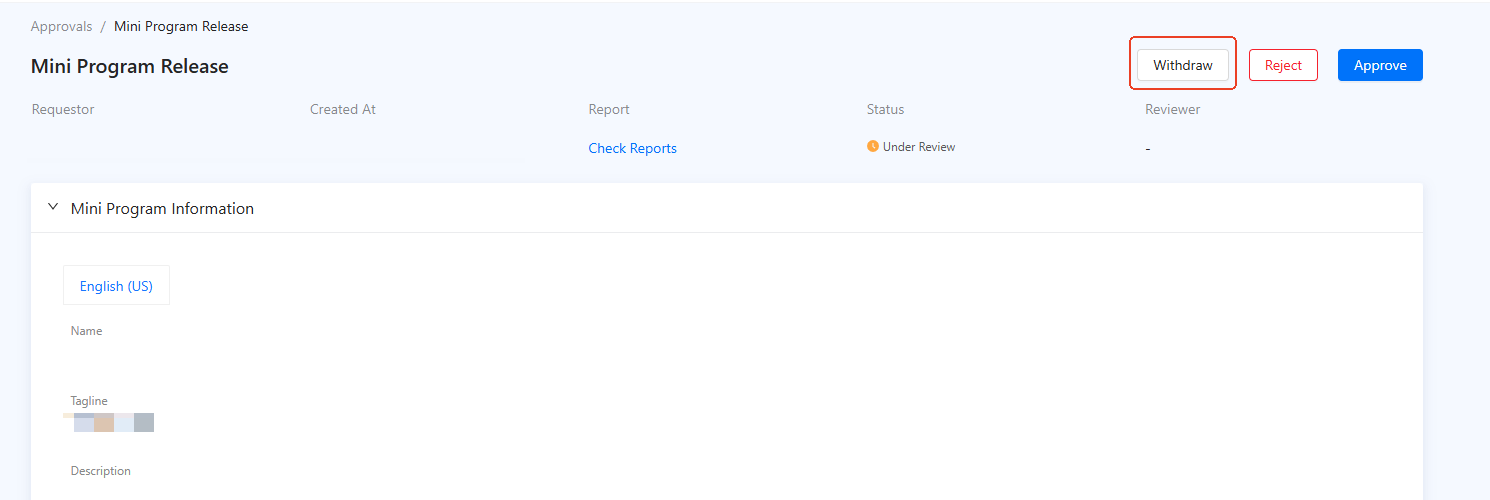
Figure 7. Withdraw a request
After withdrawal, the request's status changes to Withdrawn.