

Mini program approvals
The Mini Program tab on the Approvals page in the Mini Program platform serves as a centralized hub for managing the entire lifecycle of mini program requests. It provides a clear and efficient workflow for both mini program request submitters and approvers.
This topic walks you through the features of the Mini Program tab of the Approvals page. You will learn how to:
- Navigate and view lists of mini program requests.
- Filter and sort requests to find what you need.
- Examine the detailed information for each request.
- Perform key actions such as approving, rejecting, or withdrawing a request.
Getting started
To get started, take the following steps:
- Log on to the Mini Program platform.
- After accessing the workspace, click
 in the lower-left corner to navigate to the Approvals page.
 - On the Approvals page, you can view requests in the workspace.

- My Approvals: This tab displays requests that are assigned to you for review and action.
- My Requests: This tab displays requests that you have submitted.
To view mini program requests, click the Mini Program category below the main tabs. You can search a mini program by name or ID.
View mini program requests
View request list
The request list summarizes all mini program requests. Each row represents a single request and contains different columns.
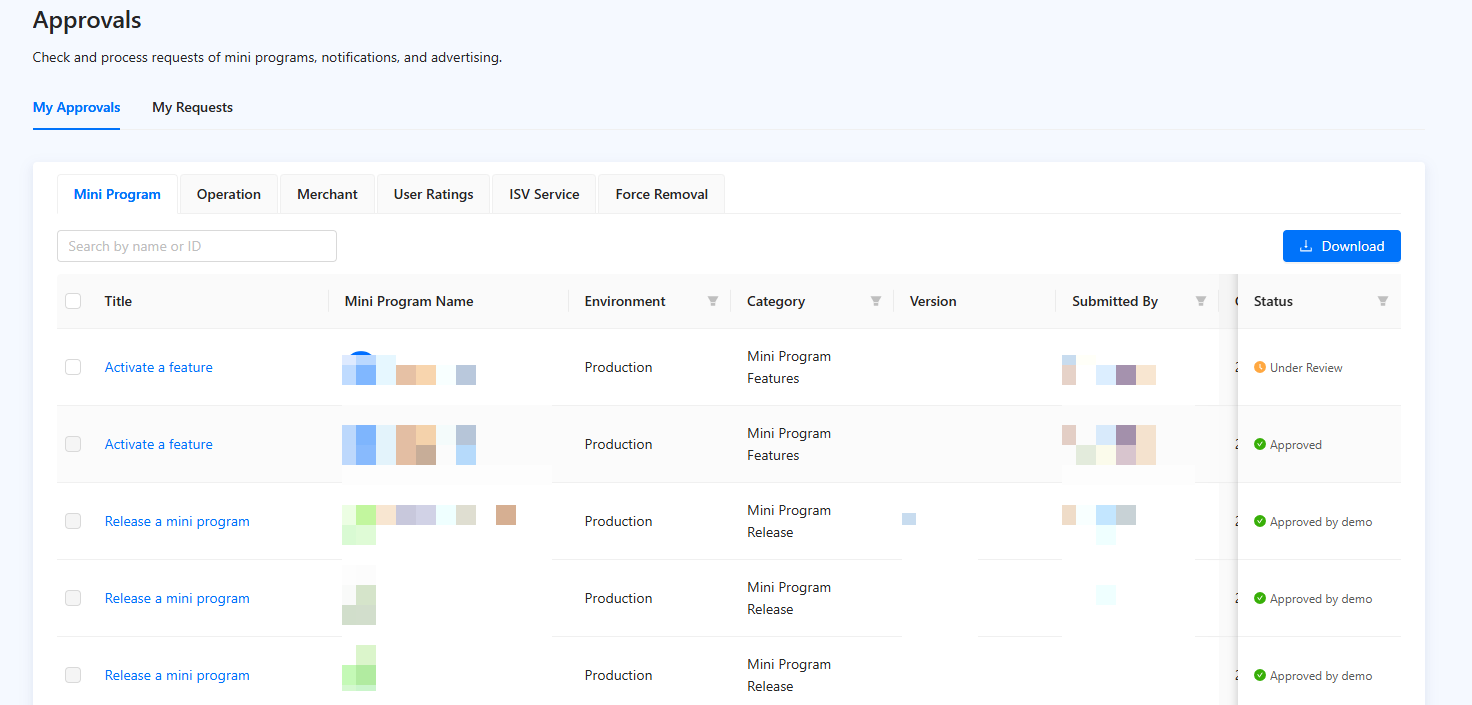
Figure 1. Mini program request list
Column | Description |
Title | A brief, descriptive title for the request. Click on the title to navigate to the detailed view of that specific request. |
Mini Program Name | The name of the mini program associated with the request. |
Environment | The deployment environment for the request. Available environments include Production and Sandbox. You can select one or more environments to filter the requests. |
Category | The type of the request. You can filter the list by one or more of the categories: • Mini Program Release: A request to publish a new version of a mini program. |
Version | The version number of the mini program related to this request. |
Submitted By | The name of the user who submitted the request. You can filter the list by this field. |
Created At | The date and time the request was submitted. You can click |
Completed On | The date and time the request was finalized (approved, rejected, or withdrawn). You can click |
Status | The current stage of the request in the approval workflow. You can filter the list by one or more of the states: • Under Review: The request has been submitted and is awaiting review. |

You can click Download in the upper-right corner of the list to download the detailed information of the requests.
View a request
To review the full details of a request, click on its title in the request list. This will open the request detail page, which contains comprehensive information organized into several sections.
- Request details: At the top of the page, you'll find key metadata about the request, including the requestor, request creation time, current status, and the assigned reviewer.
- Mini Program Information: This section displays the specific details of the mini program changes being requested. The information shown here varies depending on the request's Category:
- For a Mini Program Release request, this section includes:
- Basic Information: Name, Tagline, Description, Logo, Keywords, Type, Version, Target App, Language, etc.
- Additional details: Tags, Features, Whitelist, and the rectification information.
- For a Mini Program Offline request, this section includes:
- Basic Information: Name, Tagline, Description, Logo, Keywords, Type, Version, Target App, Language, etc.
- Offline details: Reason for Taking Offline.
- For a Mini Program Launch request, this section includes:
- Basic Information: Name, Admin, Version, Category, Description, Release Note, etc.
- Features: Feature Name, Version, Feature Description, etc.
- For a Mini Program Features request, this section includes:
- Basic Information: Name, Admin, Version, Description, etc.
- For an Optimization Modify request, this section includes:
- SubPackage Setting: Shows if sub-packaging is enabled, and provides details on Whole Package Size, Main Package Size, and Sub Package Size.
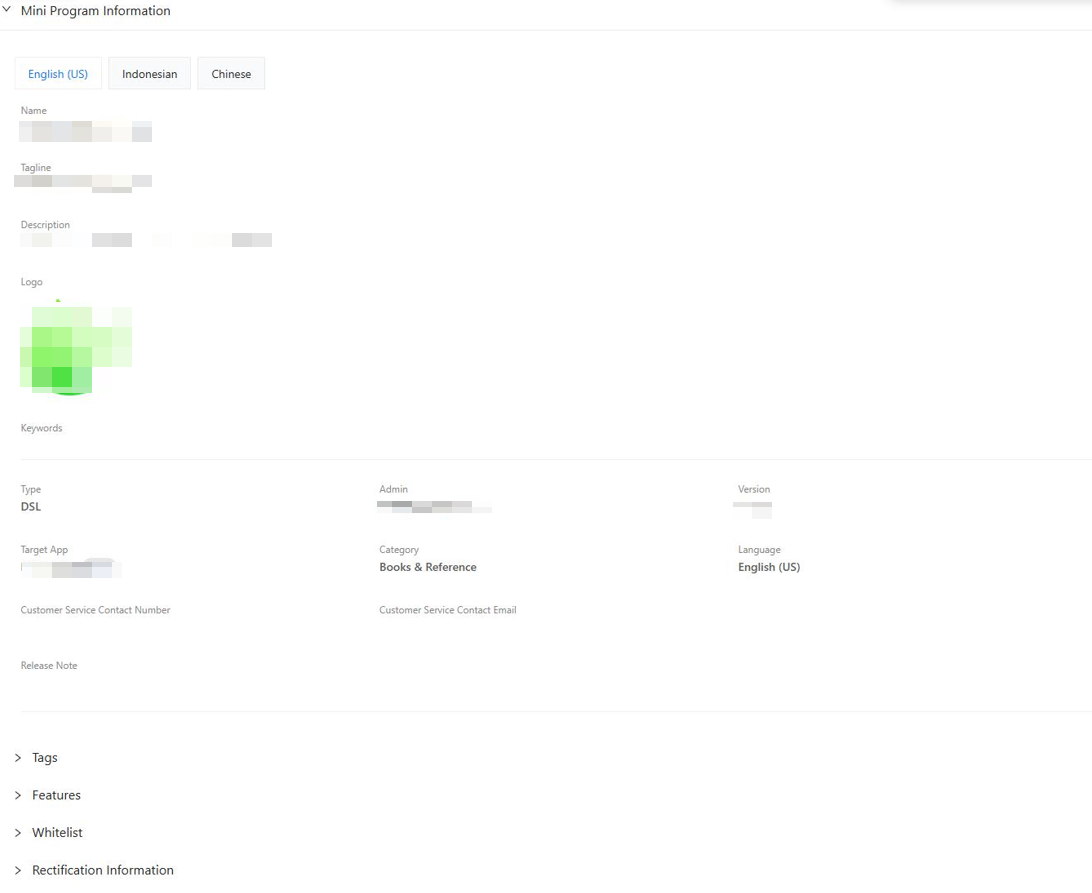
Figure 2. Mini Program Information
- Feature information: For Mini Program Features requests, this section shows mini-program feature details, including feature name, version, status, description, and APIs.
- Release Process Overview: This section provides a visual timeline that shows different stages of the approval workflow. It highlights the current stage and may display action buttons at the step.
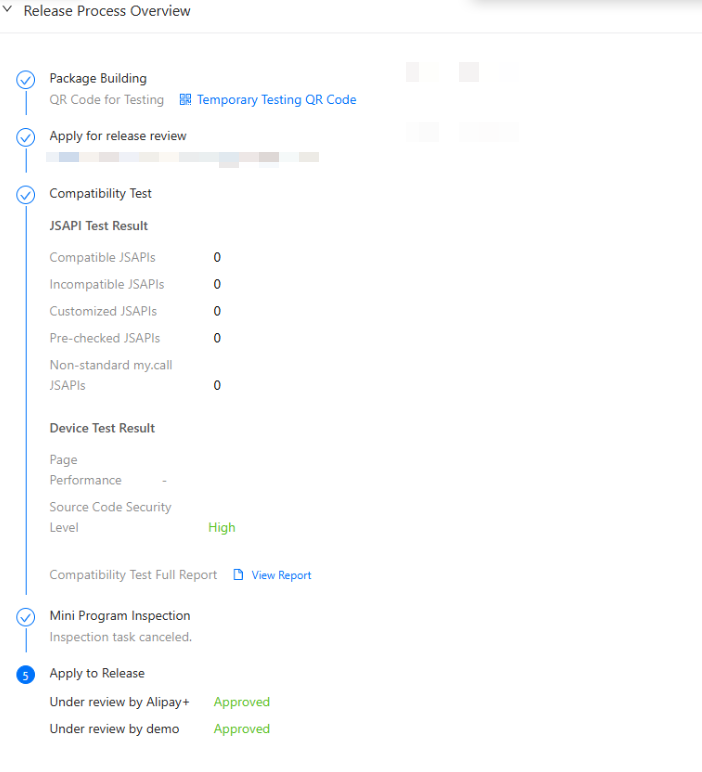
Figure 3. Release Process Overview
Approve a mini program request
To approve a mini program request, take the following steps:
- Log on to the Mini Program platform.
- After accessing the workspace, click in the lower-left corner to navigate to the Approvals page.
- On the Approvals page, locate the request to approve in the My Approvals tab.
- Click the request's title to open the detail page.
- After reviewing the information, click Approve in the top-right corner of the page.
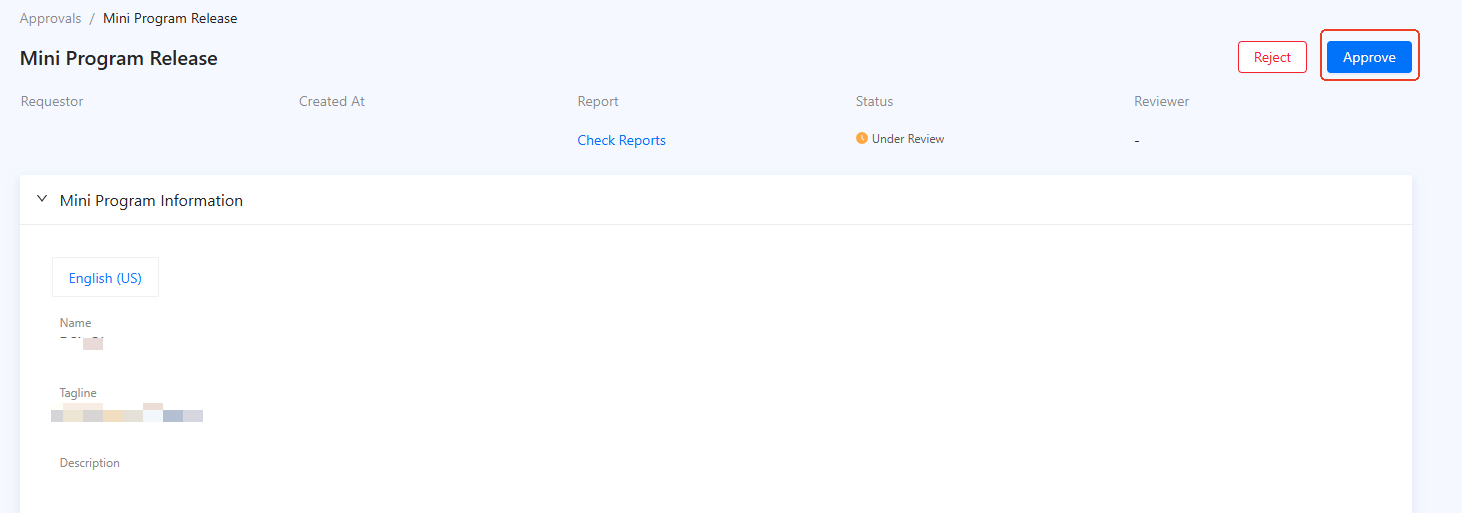
Figure 4. Approve a request
- In the displayed dialog, click Approve.
After approval, the request is marked as Approved and the message "This request is approved." is displayed at the top of the request.
Reject a mini program request
To reject a mini program request, take the following steps:
- Log on to the Mini Program platform.
- After accessing the workspace, click in the lower-left corner to navigate to the Approvals page.
- On the Approvals page, locate the request to reject in the My Approvals tab.
- Click the request's title to open the detail page.
- After reviewing the information, click Reject in the top-right corner of the page.
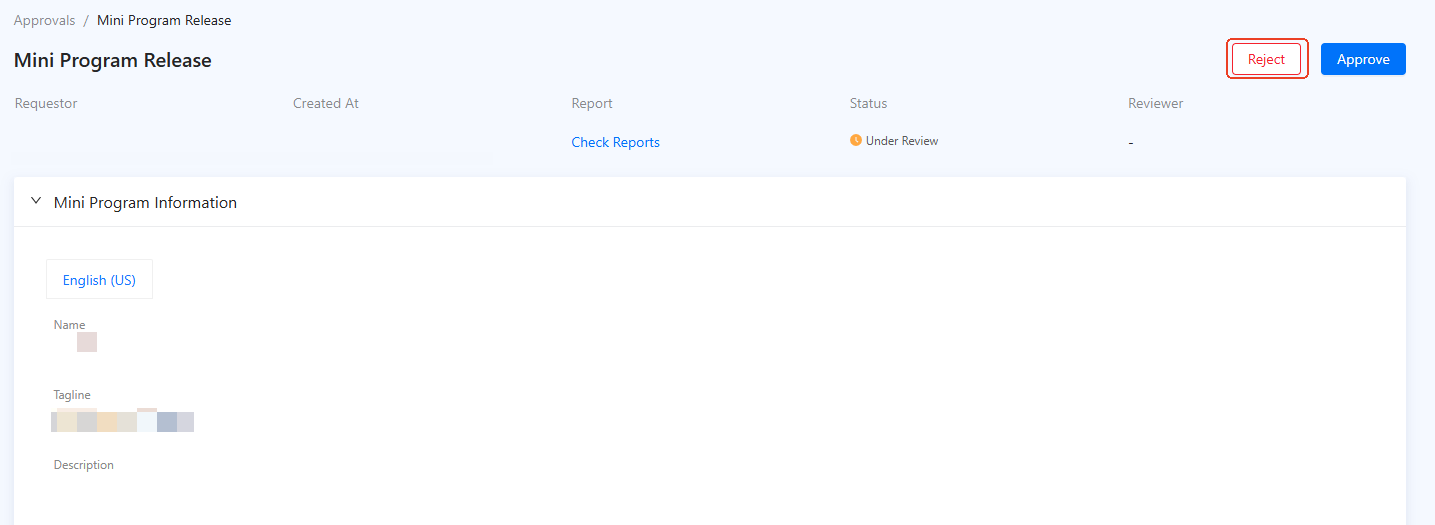
Figure 5. Reject a request
- In the displayed dialog, click Reject.
After rejection, the request status is marked as Rejected and the rejection reason is displayed on the request details page.
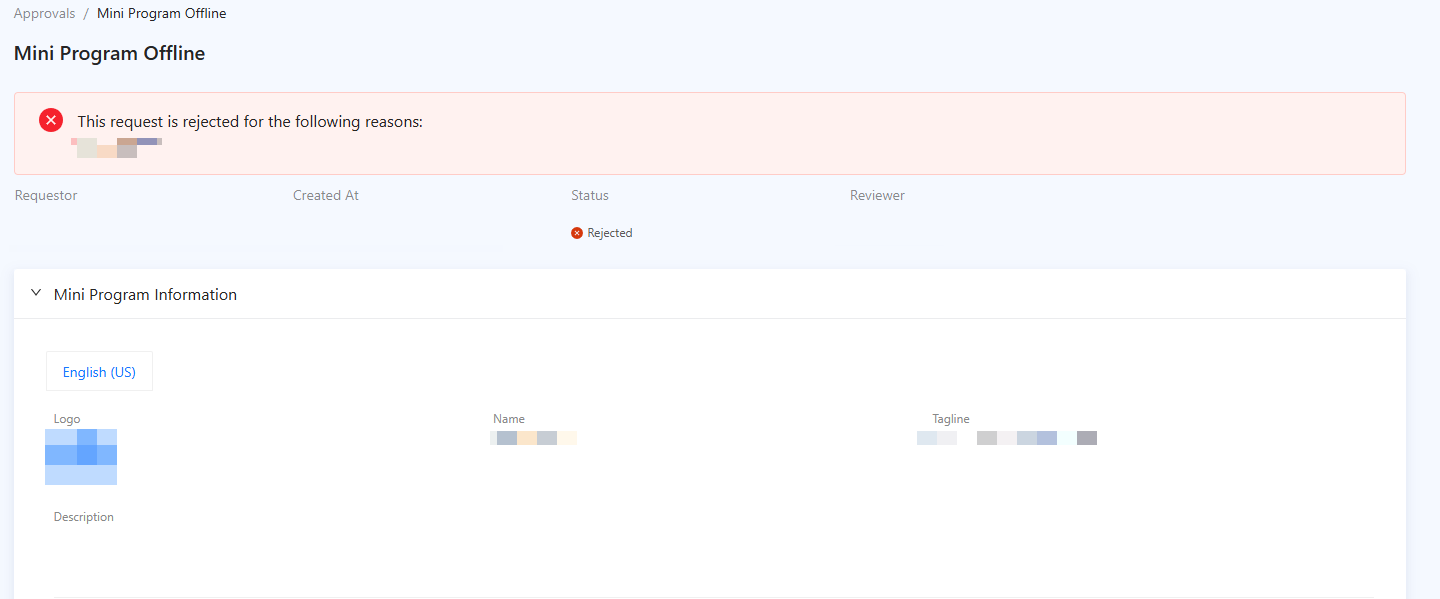
Figure 6. Request rejected
Withdraw a mini program request
To withdraw a mini program request, take the following steps:
- Log on to the Mini Program platform.
- After accessing the workspace, click in the lower-left corner to navigate to the Approvals page.
- On the Approvals page, locate the request to withdraw in the My Requests tab.
- Click the request's title to open the detail page.
- After reviewing the information, click Withdraw in the top-right corner of the page.
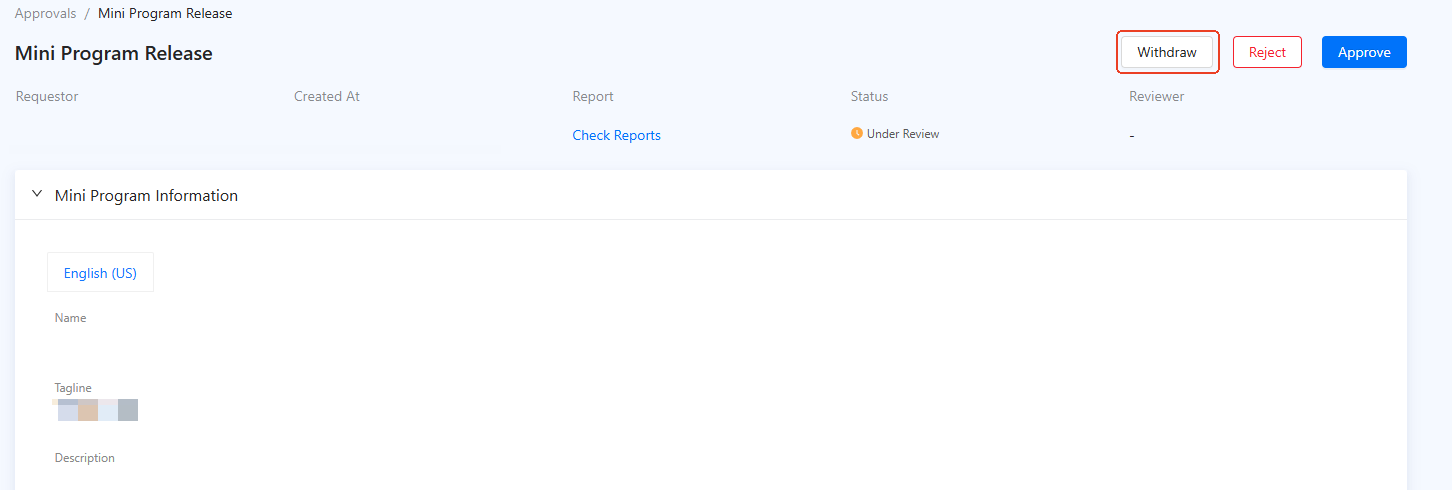
Figure 7. Withdraw a request
After withdrawal, the request's status changes to Withdrawn.